
Welcome to our new blog post about How to manually setup Azure Point-to-Site VPN (P2S) on Windows. Azure Point-to-Site (P2S) VPN enables individual client devices to securely connect to an Azure Virtual Network (VNet) from anywhere over the internet. This method is ideal for remote users or administrators who need direct access to Azure resources without configuring a site-to-site VPN or dedicated connectivity. In this guide, we’ll walk through the manual setup process for an Azure Point-to-Site VPN on a Windows device, including configuration steps both in the Azure portal and on the client side.
Table of Contents
How to configure Azure Point-to-Site VPN (P2S) with Entra ID Authentication
This Blog Post is still in progress…….
How to manually setup Azure Point-to-Site VPN (P2S) on Windows
Step 1: Download VPN client
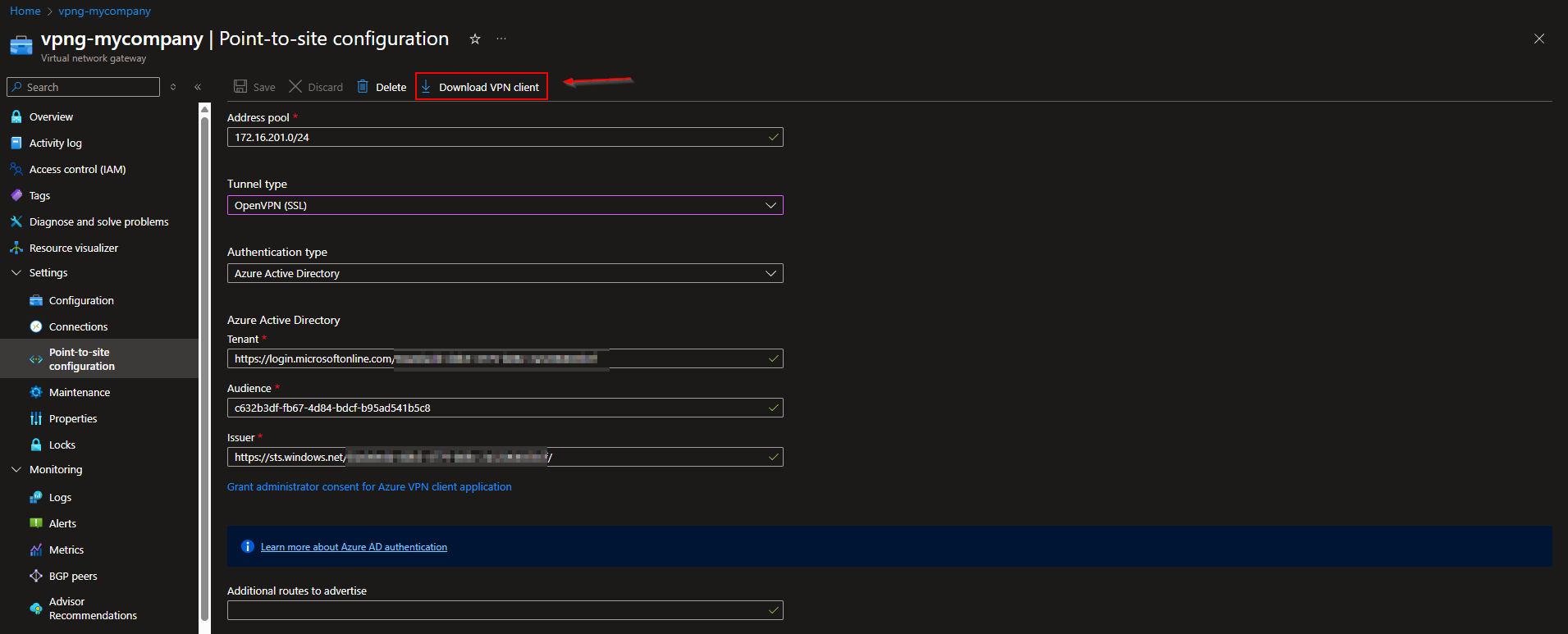
In this section we will first need to download the VPN client from the Azure Portal. Make sure you have access to the Virtual network gateway where the Point-to-site is configured. Just follow the steps here:
- Go to the Azure Portal portal.azure.com
- Navigate to the VPN Gateway Ressource
- On the Settings tab click on Point-to-site configuration
- On the top, click on Download VPN Client
Step 2: Install the Azure VPN Client
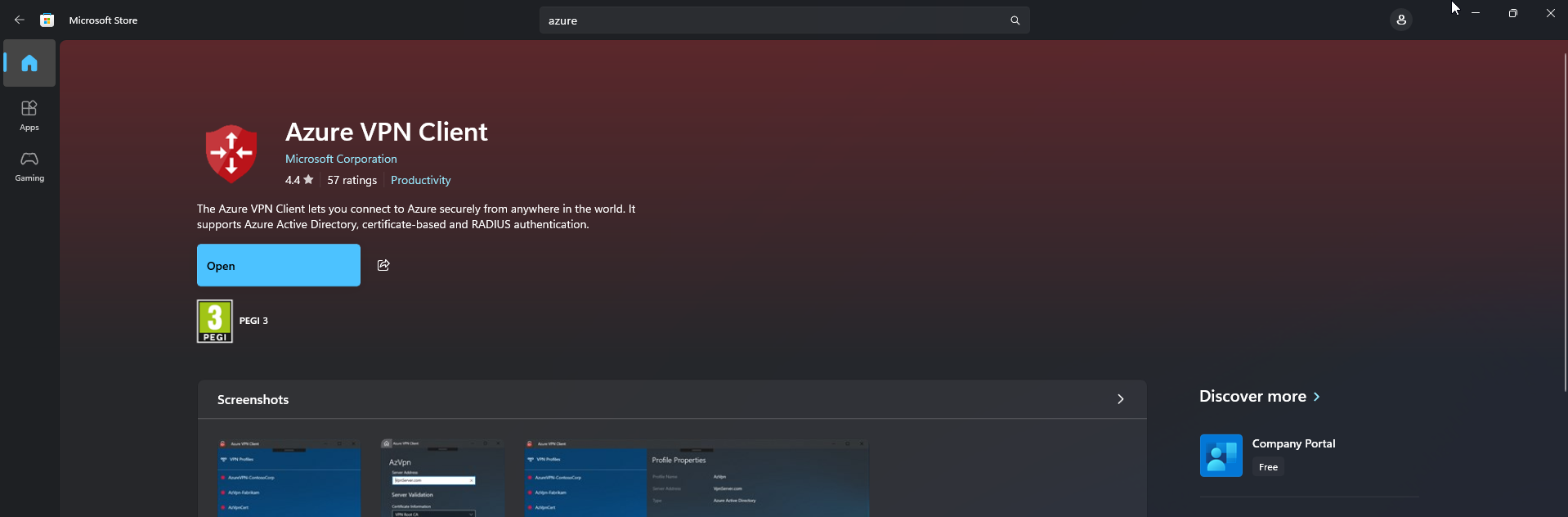
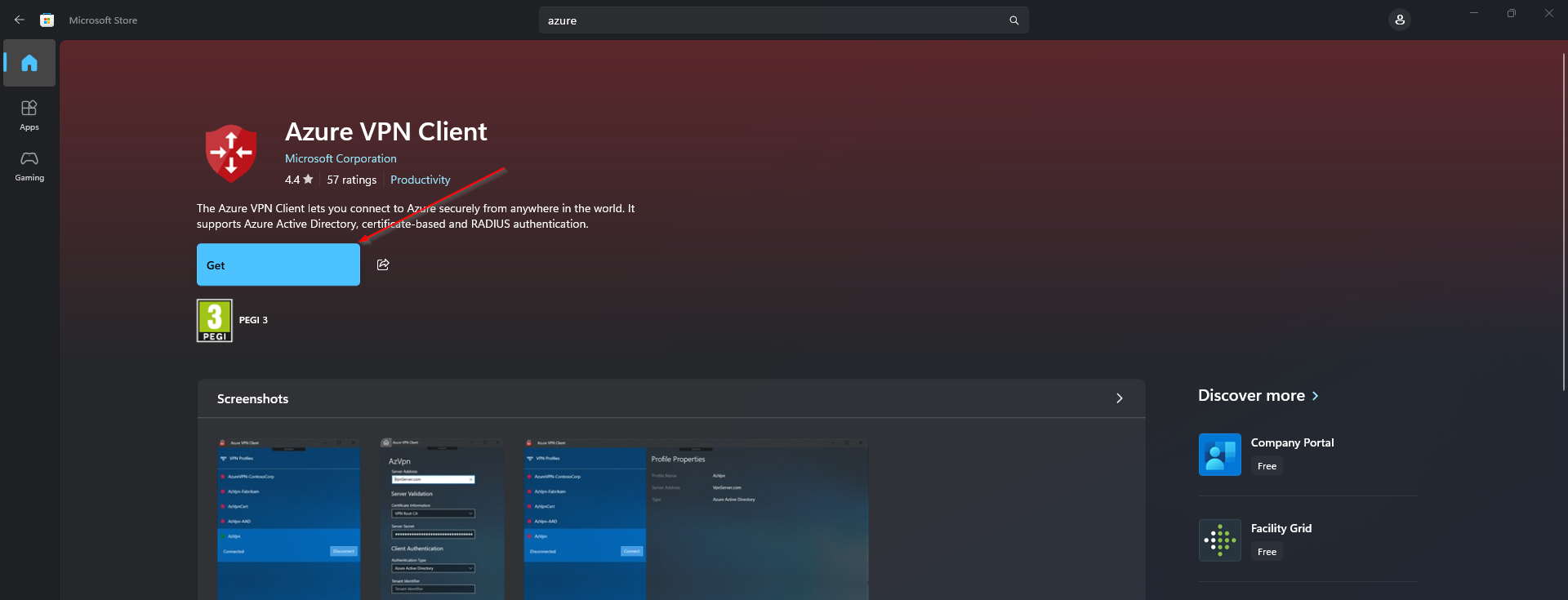
In this section we will install the Azure VPN Client on the Windows device. We will install it from the Microsoft Store App. Just follow the steps:
- Open the Microsoft Store on the Device
- Search for Azure VPN Client
- Install the Azure VPN Client
Step 3: Configure the Azure VPN Client
In this section we will import the downloaded file from step 1 in the Azure VPN Client. After this step, you will have a working VPN Client configured on a Windows device.
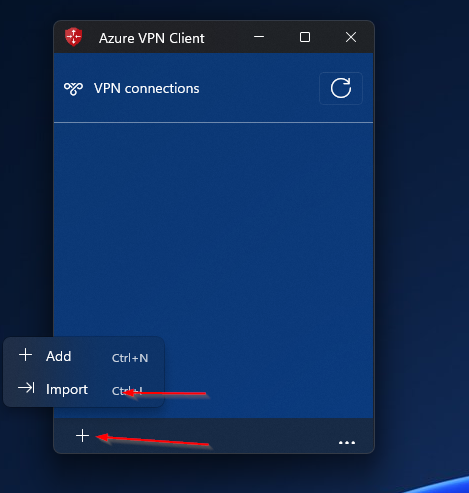
- Open the Azure VPN Client
- Click on + and on Import
- Search for the downloaded folder from step 1.
- Navigate to /AzureVPN/azurevpnconfig.xml
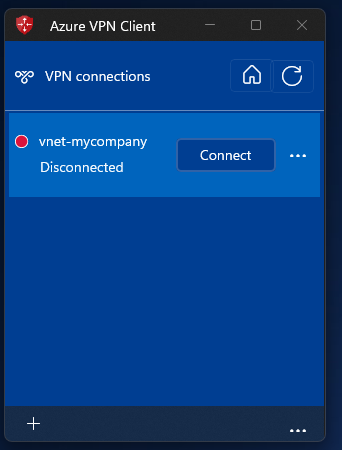
- Save the configuration
Conclusion
In this blog post we learned about How to manually setup Azure Point-to-Site VPN (P2S) on Windows. By enabling this feature, organizations can greatly improve their device security and compliance posture by enforcing additional authentication factors at unlock. We hope this guide has provided you with valuable insights to improve your device management strategy. Did you enjoy this article? Dont forget to follow us and share this article. If you have any questions or need further assistance, feel free to reach out or leave a comment below.