
Welcome to our new blog post How to configure Edge new tab page with Microsoft Intune. In this article, we will walk through how to set the page that opens in a new tab in Microsoft Edge, for example your intranet, with a Settings catalog policy in Microsoft Intune.
Table of Contents
What Is the New Tab Page?
The new tab page is the page that Microsoft Edge shows when the user opens a new tab or a new window. By default it shows a search box, shortcuts and, depending on the browser, a news feed. Do not mix it up with the startup page, which opens when the browser starts, and the home page, which opens with the Home button. Each of them has its own policy.
Why Configure the New Tab Page?
A user opens a new tab many times per day. If your intranet or your company portal opens there, the most important links are always one click away. At the same time you get rid of the news feed, which is a distraction in a work browser. If you only want a clean page, you can set a blank page as well.
Prerequisites
- Windows 10 or Windows 11 devices that are enrolled in Microsoft Intune
- A Microsoft Intune Plan 1 subscription
- The Policy and Profile Manager role, or a role with higher permissions
- A group with test devices or test users
- Microsoft Edge is installed on the devices
- The address of the page that should open in a new tab
How to configure Edge new tab page with Microsoft Intune
Step 1: Create the configuration profile
In this section we will create a configuration profile with the Settings catalog. Just follow the steps below.
- Go to intune.microsoft.com
- Click on Devices
- Click on Windows
- Click on Configuration
- Click on Create and New Policy
- For Platform choose Windows 10 and later
- For Profile type choose Settings catalog
- Click on Create
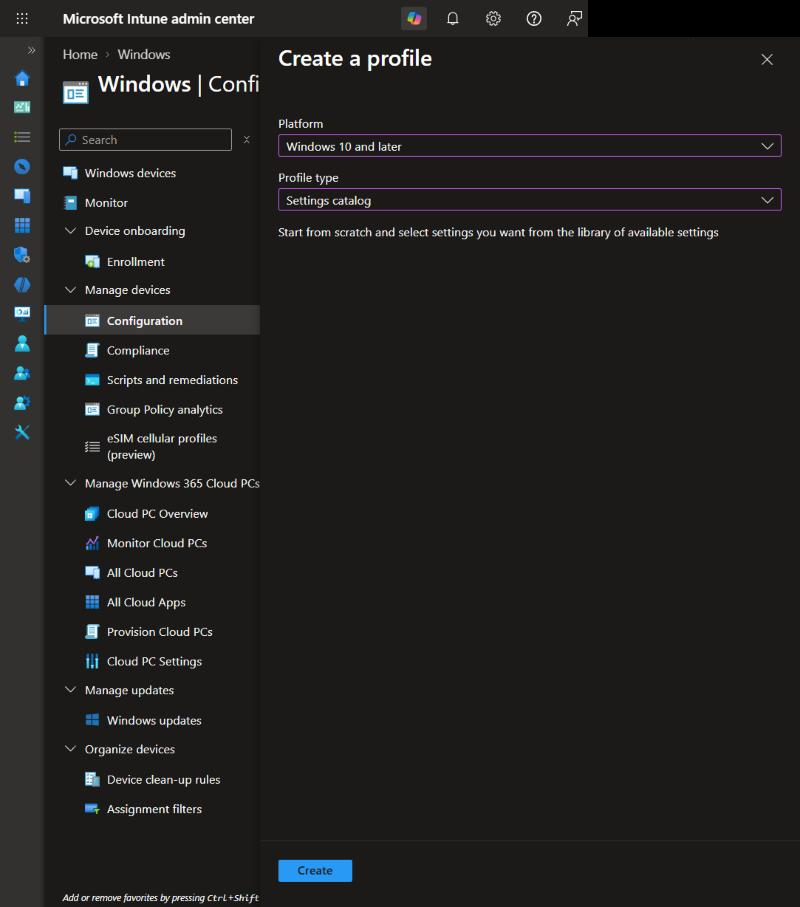
On the Basics page give it a Name, for example Microsoft Edge new tab page, and a Description (Optional) and click on Next.
On the Configuration settings page:
- Click on Add settings
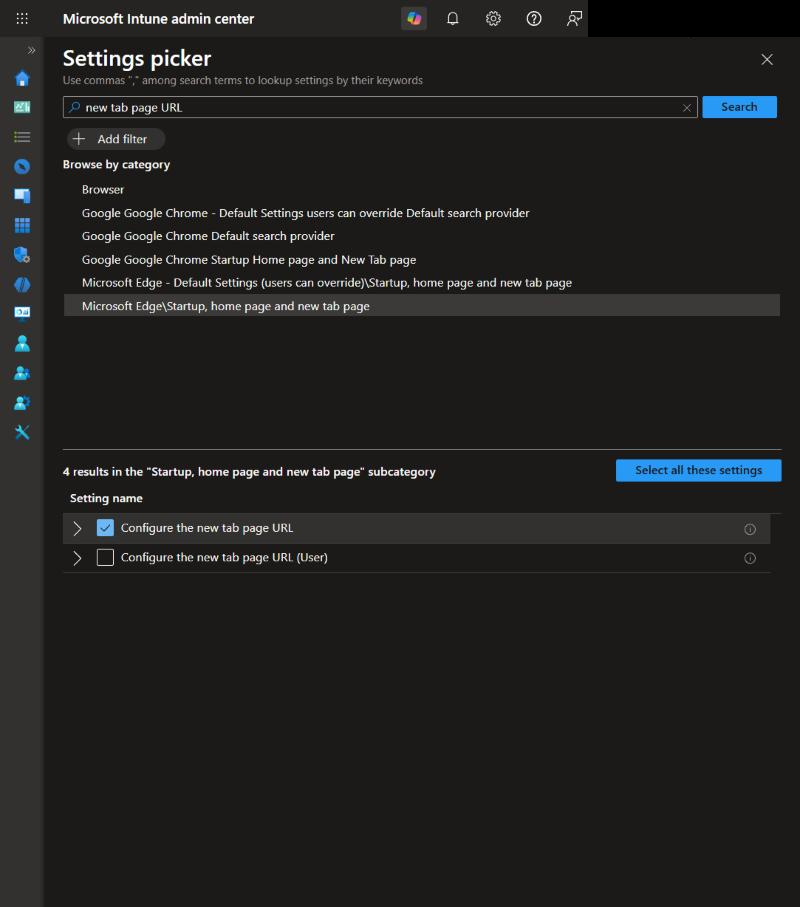
- Search for new tab page URL
- Select the category Microsoft Edge\Startup, home page and new tab page
- Select Configure the new tab page URL
- Close the settings picker
- Set Configure the new tab page URL to Enabled
- Enter the address, for example https://intranet.contoso.com. For an empty page enter about:blank
- Click on Next
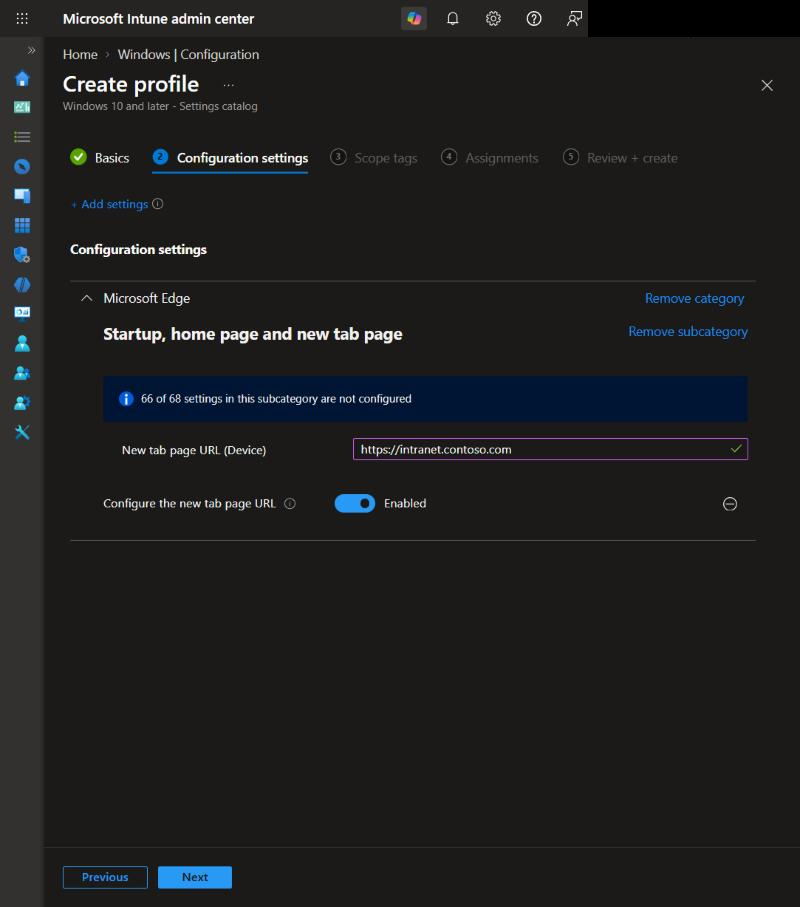
Enter the full address including https://. The policy only changes the new tab page. It does not change the startup page or the home page.
Step 2: Assign the policy
Now we assign the policy and finish the wizard.
- On the Scope tags page, add your scope tags if applicable and click on Next
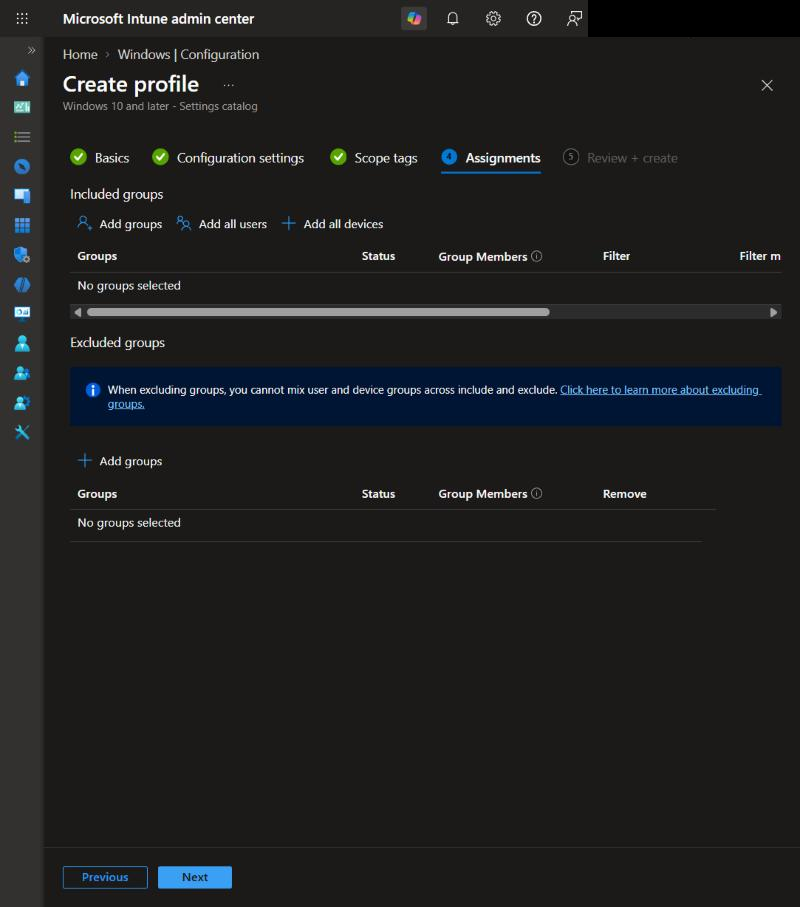
- On the Assignments page, select the group you want to deploy the policy to. We recommend starting with a test group
- Click on Next
- Click on Review + create
Step 3: Check the result on the device
After the next sync the setting arrives on the device. To speed this up, open the Company Portal app on a test device and click on Sync, or select the device in the Intune admin center and click on Sync.
- Open Microsoft Edge on a test device
- Enter edge://policy in the address bar
- NewTabPageLocation is listed with your address
- Open a new tab. Your page is shown
The policy only works on devices that are managed, for example joined to Microsoft Entra ID or enrolled in Microsoft Intune. The browser ignores it on unmanaged devices.
Conclusion
In this blog post we learned how to configure Edge new tab page with Microsoft Intune. You now know the difference between new tab page, startup page and home page and how to set the new tab page of Microsoft Edge. More details are available here: Microsoft Edge policy NewTabPageLocation. You might also like: How to configure Edge startup page with Microsoft Intune. Did you enjoy this article? Don’t forget to follow us and share this article. If you have any questions or need further assistance, feel free to reach out or leave a comment below.