
Welcome to our new blog post Learn about Local Autopilot Reset with Microsoft Intune. In this article, we will walk through what Local Autopilot Reset is, why it’s useful for IT administrators, and how to configure and use it within your Microsoft Intune environment.
Table of Contents
What Is Local Autopilot Reset?
Local Autopilot Reset is a Windows Autopilot feature that restores a Windows device to a business-ready state while preserving important device information such as the Azure AD join state, MDM enrollment, and Wi-Fi configuration. It is designed for scenarios where a device needs to be repurposed quickly—such as reassigning it to another user—without requiring a full wipe or re-provisioning.
Why Use Local Autopilot Reset?
This feature significantly reduces the time required to prepare devices for new users. It helps organizations ensure standardized configurations, maintain compliance, and streamline IT operations—especially in remote or large-scale environments.
Learn about Local Autopilot Reset with Microsoft Intune
Step 1: Enable Autopilot Reset in Microsoft Intune
In this section we will first enable the Local Autopilot Reset with the help of a configuration profile. Just follow the steps below.
- Go to intune.microsoft.com
- Click on Devices
- Click on Windows
- Click on Configuration
- Click on Create and New Policy
- For Platform choose Windows 10 and later
- For Profile type choose Templates
- Click on Device restrictions
- Click on Create
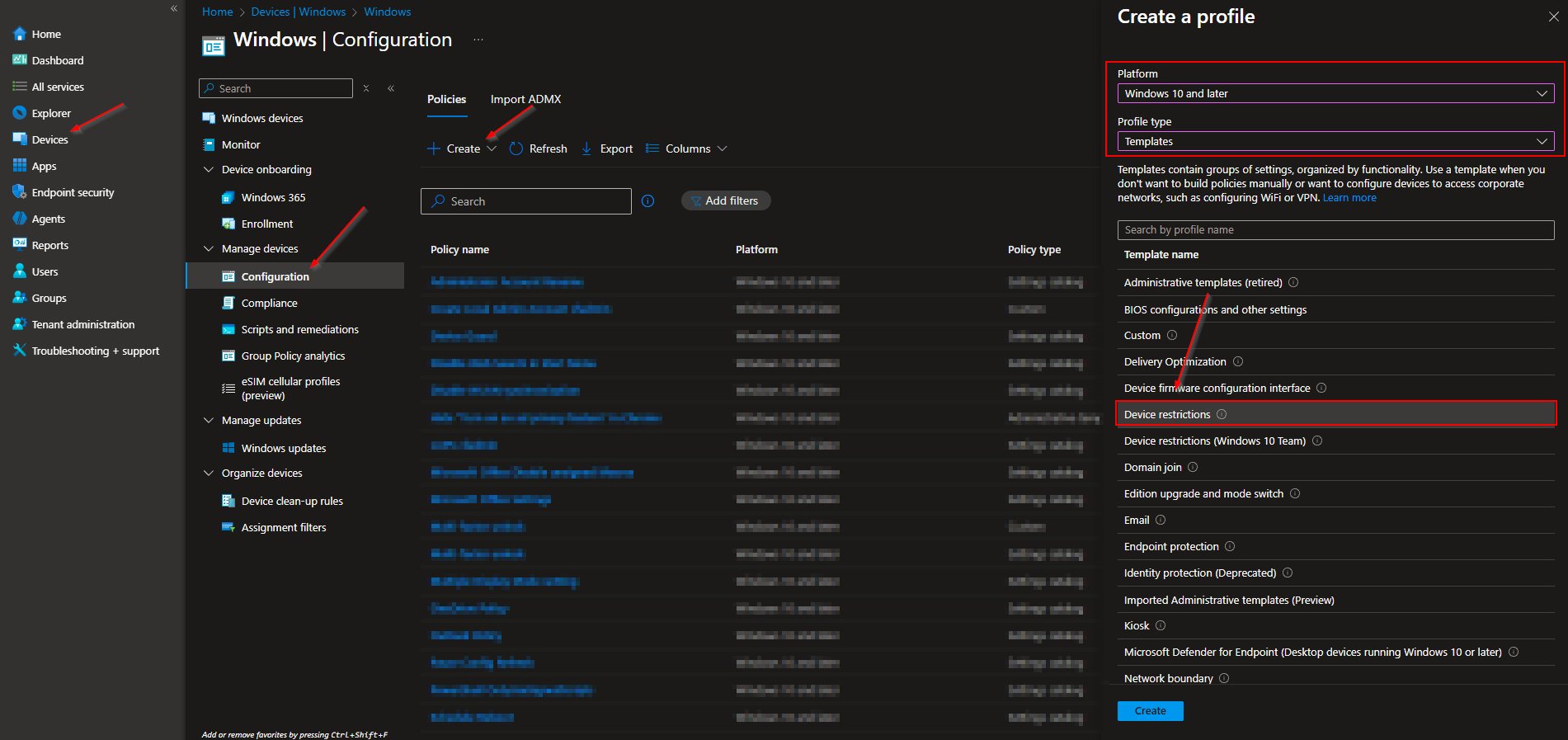
On the Basic page give it a Name and Description (Optional) and click on Next.
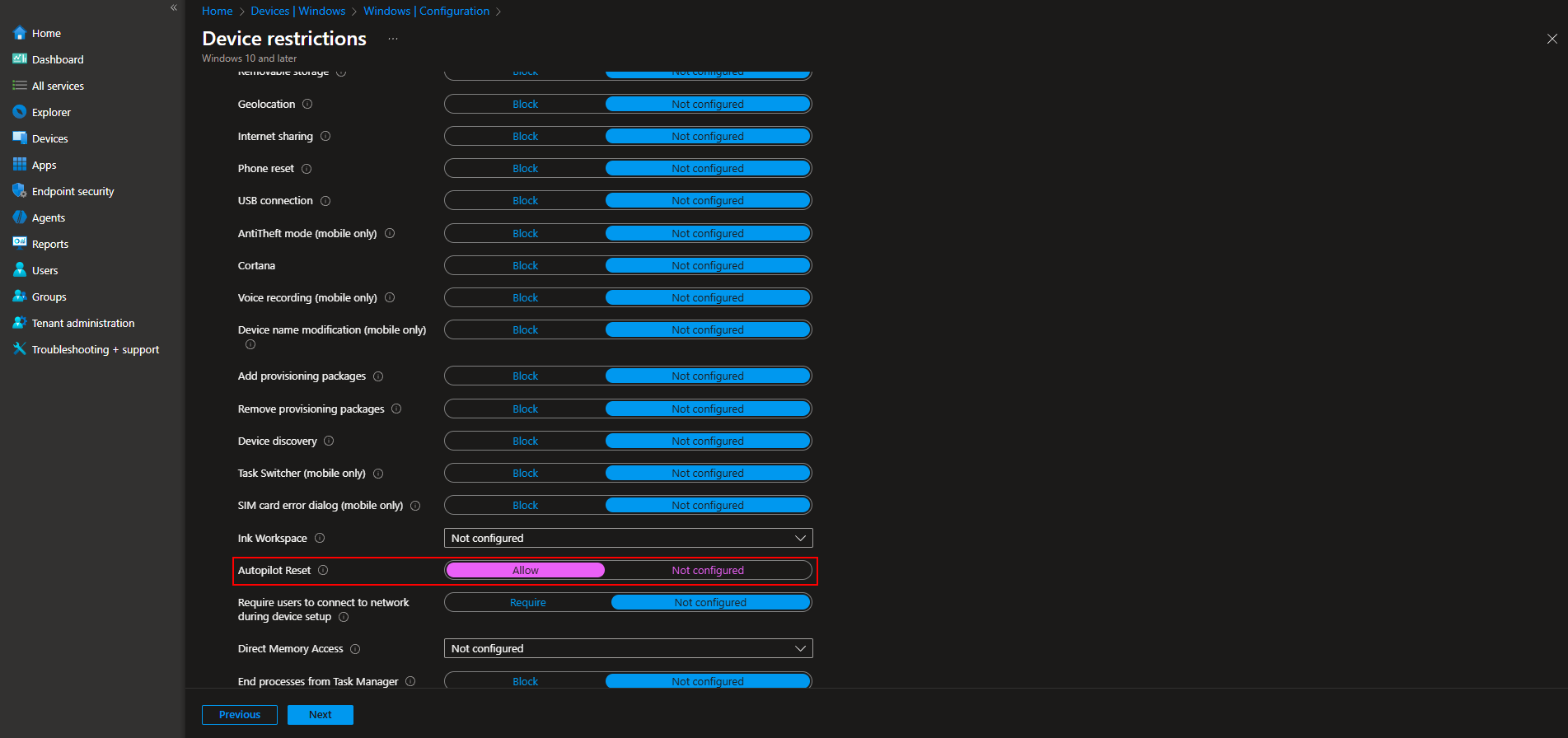
On the configuration settings page:
- Locate General and expand it
- Scroll down and locate Autopilot Reset
- Next to Autopilot Reset, select Allow
On the Assignments page, select groups to include in the Autopilot Reset option. Click on Next
On the Applicability Rules define you settingsif applicable and click on Next
Review + Create the Policy
Step 2: Trigger local Windows Autopilot Reset
A local Windows Autopilot Reset is a two-step process:
- Trigger the Windows Autopilot Reset.
- Authenticate.
To trigger a local Windows Autopilot Reset on a device, follow these steps:
- Make sure that the device is in the device group where the Windows Autopilot Reset configuration profile was assigned to.
- From the Windows device lock screen, enter the keystroke CTRL + WIN + R
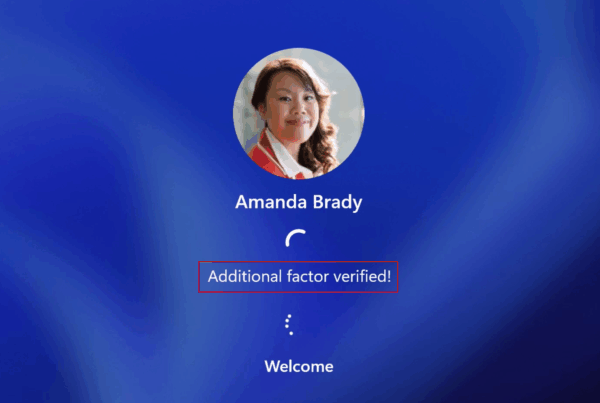
- To trigger the local Windows Autopilot Reset, sign into the device with an account that has local administrator credentials.
Once the local Windows Autopilot Reset is triggered, the reset process starts. Once provisioning is complete, the device is again ready for use.
Conclusion
In this blog post we Learn about Local Autopilot Reset with Microsoft Intune. We hope this guide has provided you with valuable insights to improve your device management strategy. Did you enjoy this article? Dont forget to follow us and share this article. If you have any questions or need further assistance, feel free to reach out or leave a comment below.