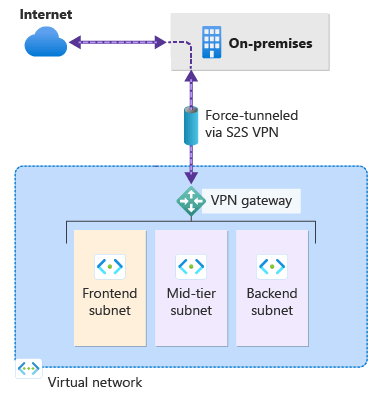

Welcome to our new blog post How to configure Azure Point-to-Site VPN (P2S) with Entra ID Authentication. In this article, we will walk through how to configure a Point-to-Site (P2S) VPN on an Azure VPN gateway so that your users sign in with their Microsoft Entra ID account instead of a certificate.
Table of Contents
What Is a Point-to-Site VPN with Entra ID Authentication?
A Point-to-Site VPN connects a single device, for example a notebook at home, to an Azure virtual network. With Microsoft Entra ID authentication the user signs in to the VPN with the same account as for Microsoft 365. The connection uses the OpenVPN protocol and the Azure VPN Client.
Why Use Entra ID Authentication?
With certificates you have to create, distribute and revoke a certificate for every device. With Entra ID authentication you manage access with users and groups, and you can protect the VPN sign-in with Conditional Access and multifactor authentication. When a user leaves the company, disabling the account is enough.
Prerequisites
- An Azure virtual network with a VPN gateway. The Basic SKU and policy-based gateways are not supported
- A Microsoft Entra tenant and your Tenant ID
- Permissions to change the VPN gateway, for example the Network Contributor role
- An address range for the VPN clients that does not overlap with your networks
How to configure Azure Point-to-Site VPN (P2S) with Entra ID Authentication
Step 1: Add the VPN client address pool
In this section we will open the Point-to-site configuration of the gateway and define the address range for the VPN clients.
- Go to portal.azure.com
- Open your Virtual network gateway
- Click on Point-to-site configuration
- Click on Configure now
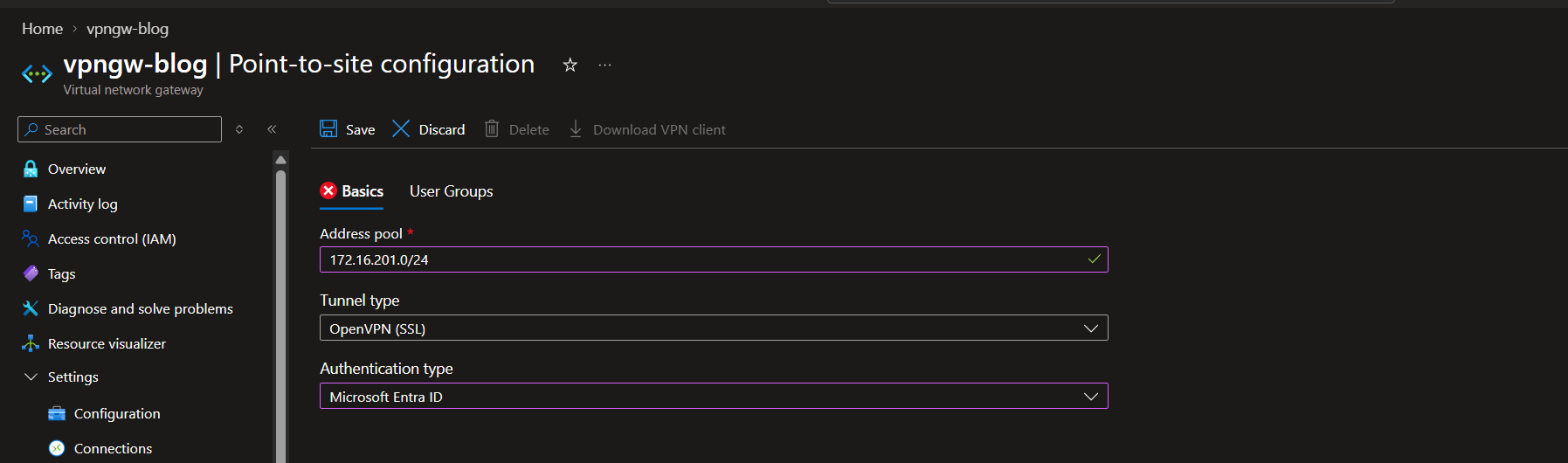
- In the Address pool box enter a private range, for example 172.16.201.0/24
The smallest possible range is a /29 for an active/passive gateway and a /28 for an active/active gateway.
Step 2: Configure tunnel type and authentication
Now we tell the gateway to use OpenVPN and Microsoft Entra ID. Replace {TenantID} with your own Tenant ID and remove the curly braces.
- For Tunnel type choose OpenVPN (SSL)
- For Authentication type choose Microsoft Entra ID
- Tenant: https://login.microsoftonline.com/{TenantID}
- Audience: c632b3df-fb67-4d84-bdcf-b95ad541b5c8
- Issuer: https://sts.windows.net/{TenantID}/
- Click on Save
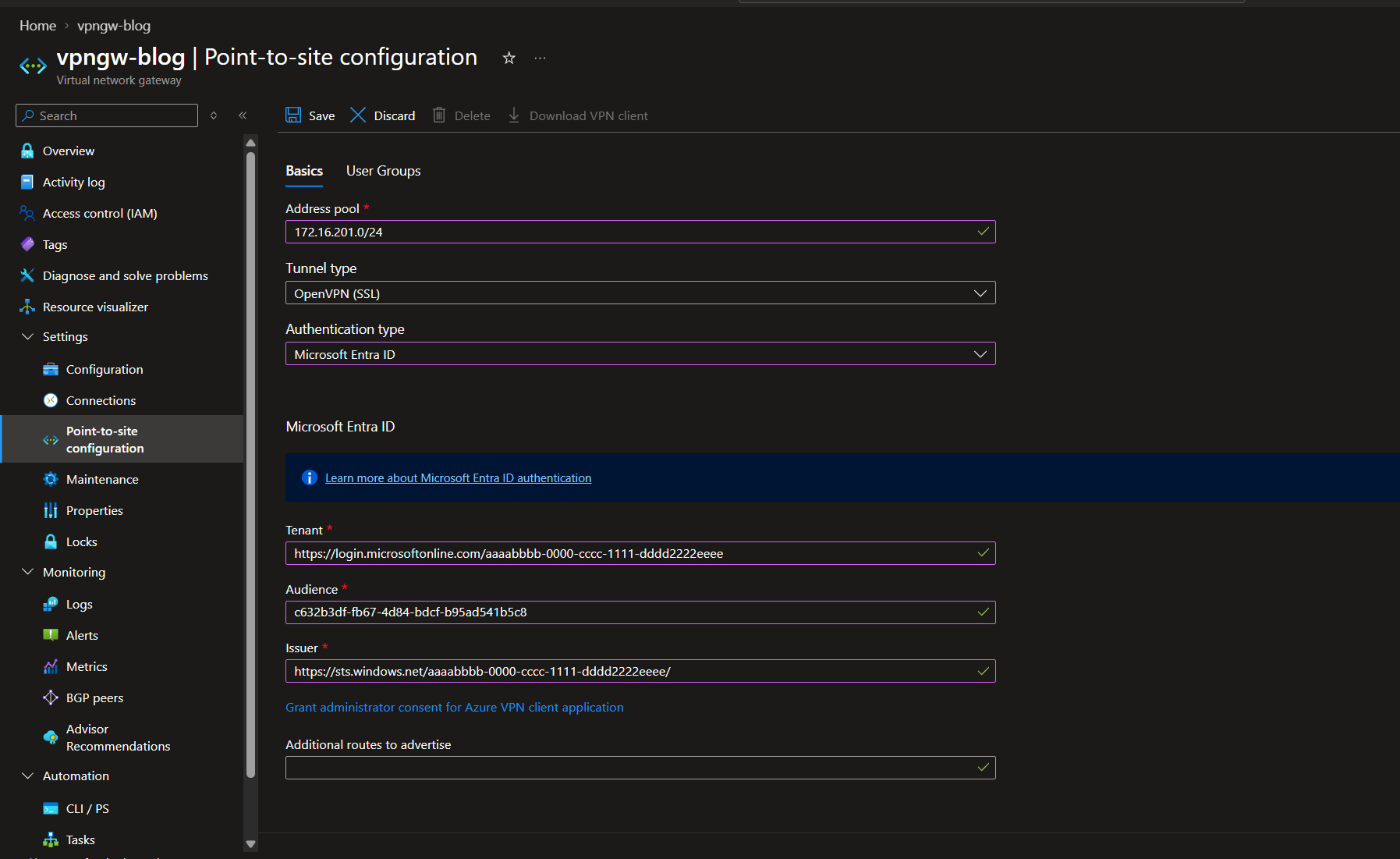
Three things to watch out for: the Issuer must end with a slash. The Audience shown above is the Microsoft-registered Azure VPN Client app, so you do not have to register an app yourself. And do not click on Grant administrator consent for Azure VPN client application, this is only needed for the older, manually registered client.
Step 3: Download the VPN client profile
After the configuration is saved you can download the profile that your users need.
- At the top of the page click on Download VPN client
- Wait until the zip file is generated. This can take a few minutes
- Extract the zip file
- Open the folder AzureVPN
- The file azurevpnconfig.xml contains the settings for the Azure VPN Client
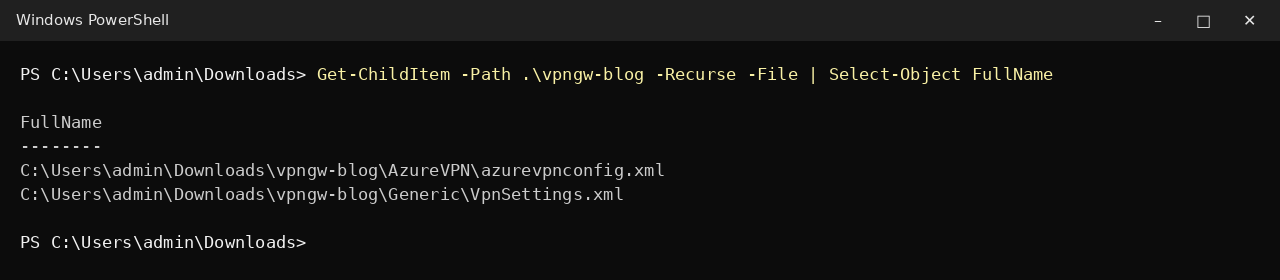
You can now import this file into the Azure VPN Client. If you change the Point-to-site configuration later, download the profile again and distribute the new file.
Conclusion
In this blog post we learned how to configure Azure Point-to-Site VPN (P2S) with Entra ID Authentication. You now have a gateway that authenticates VPN users with Microsoft Entra ID and a profile file for the Azure VPN Client. More details are available here: Configure P2S VPN Gateway for Microsoft Entra ID authentication. You might also like: How to manually setup Azure Point-to-Site VPN (P2S) on Windows. Did you enjoy this article? Don’t forget to follow us and share this article. If you have any questions or need further assistance, feel free to reach out or leave a comment below.