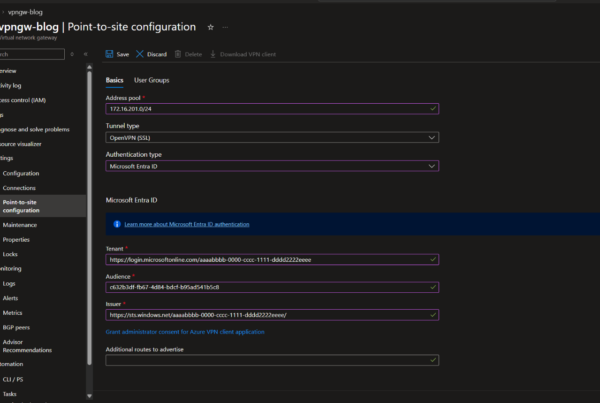

Welcome to our new blog post How to manually setup Azure Point-to-Site VPN (P2S) on Linux. In this article, we will walk through how to connect a Linux device to your Azure virtual network. Important to know up front: Microsoft retired the Azure VPN Client for Linux on August 31, 2026. Microsoft Entra ID authentication is therefore no longer available on Linux, and this guide uses the OpenVPN client with certificate authentication.
Table of Contents
What Changed for Linux?
Until August 2026 the Azure VPN Client for Linux was the only way to sign in to a Point-to-Site VPN with Microsoft Entra ID on Linux. The supported alternatives, OpenVPN and strongSwan, do not support Microsoft Entra ID authentication with an Azure VPN gateway. To keep using Linux, the gateway needs another authentication method, for example certificates.
Why Use OpenVPN with Certificates?
The OpenVPN client is available in every common Linux distribution and works from the command line and from the Network Manager. An Azure VPN gateway can offer several authentication types at the same time, so your Windows and macOS users can continue to use Microsoft Entra ID while Linux devices connect with a certificate.
Prerequisites
- An Azure VPN gateway with Point-to-Site, tunnel type OpenVPN and Azure certificate authentication
- The VPN client profile package (zip file) from the Azure portal
- A client certificate, exported as .pfx file
- A Linux device with sudo rights. The commands below are for Ubuntu and Debian
How to manually setup Azure Point-to-Site VPN (P2S) on Linux
Step 1: Install the OpenVPN client
Open a terminal and install OpenVPN and the Network Manager plugin.
sudo apt-get install openvpn
sudo apt-get -y install network-manager-openvpn
sudo service network-manager restart

Microsoft notes that OpenVPN client version 2.6 is not yet supported. Check the current note on Microsoft Learn before you upgrade the OpenVPN package on your clients.
Step 2: Extract the certificate and the private key
The profile needs your client certificate and the private key as text. Extract both from the pfx file.
openssl pkcs12 -in "filename.pfx" -nodes -out "profileinfo.txt"
Open profileinfo.txt. It contains the private key and the certificates. You need two parts:
- The client (child) certificate: the text between —–BEGIN CERTIFICATE—– and —–END CERTIFICATE—–. You can identify it by the subject= line
- The private key: the text between —–BEGIN PRIVATE KEY—– and —–END PRIVATE KEY—–
Step 3: Edit the VPN profile
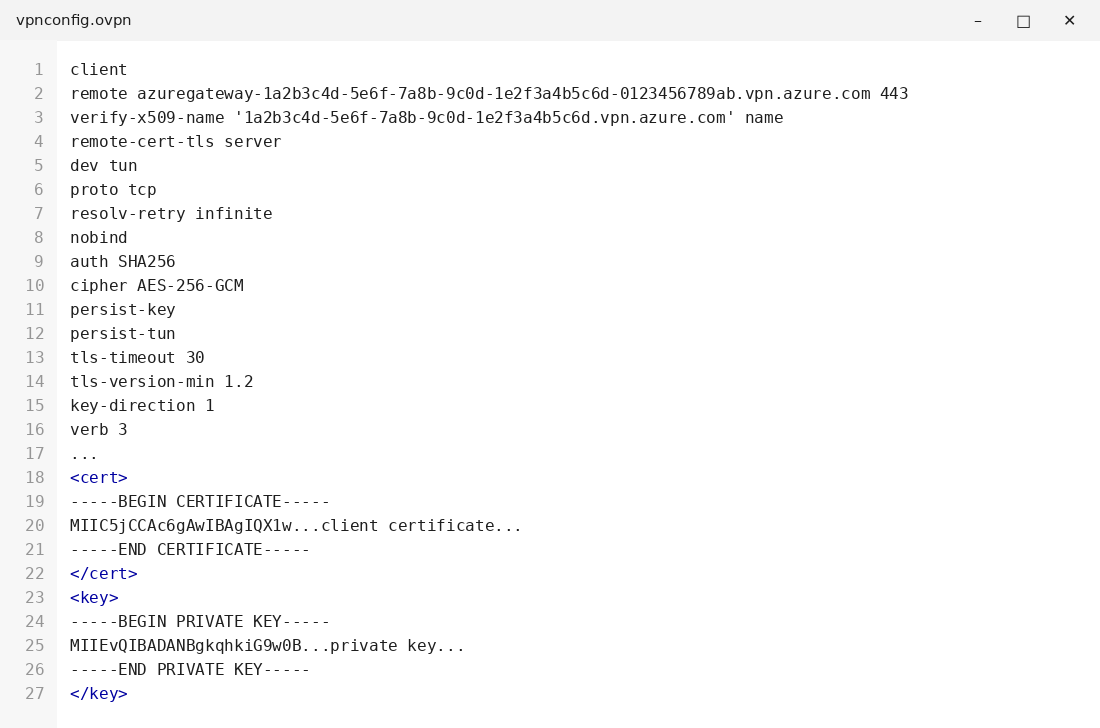
Extract the VPN client profile package and open the file vpnconfig.ovpn from the OpenVPN folder in a text editor.
- Replace $CLIENTCERTIFICATE in the cert section with your client certificate
- Replace $PRIVATEKEY in the key section with your private key
- Do not change any other field
- Save the file
Step 4: Connect to the VPN
You can connect from the command line:
sudo openvpn --config <name and path of your VPN profile file>&
To disconnect run:
sudo pkill openvpn
If you prefer the graphical way, open the Settings, add a new VPN connection with +, choose Import from file, select the vpnconfig.ovpn file and click on Add. After that you can switch the VPN on and off in the network settings.

Conclusion
In this blog post we learned how to manually setup Azure Point-to-Site VPN (P2S) on Linux. You now know that Microsoft Entra ID authentication is no longer available on Linux and how to connect with OpenVPN and a certificate instead. More details are available here: Configure OpenVPN client for Linux, Migrate from the Azure VPN Client for Linux. You might also like: How to manually setup Azure Point-to-Site VPN (P2S) on Windows. Did you enjoy this article? Don’t forget to follow us and share this article. If you have any questions or need further assistance, feel free to reach out or leave a comment below.