
Welcome to our new blog post How to configure Windows Hello for Business with Microsoft Intune. In this article, we will walk through what Windows Hello for Business is, why it is the better choice compared to passwords, and how to configure it for your Windows devices with Microsoft Intune, either for all devices at enrollment or for selected groups.
Table of Contents
What Is Windows Hello for Business?
Windows Hello for Business replaces the password on a Windows device with a PIN or a biometric gesture such as fingerprint or facial recognition. The credential is bound to the device and protected by the Trusted Platform Module (TPM). The PIN never leaves the device, which makes it much harder to steal than a password.
Why Use Windows Hello for Business?
Passwords can be phished, reused and guessed. With Windows Hello for Business your users sign in with a phishing-resistant method, and they get a faster sign-in at the same time. For Microsoft Entra joined devices Windows Hello for Business is enabled by default, but without a policy you have no control over PIN length, TPM usage or biometrics.
Prerequisites
- Windows devices that are Microsoft Entra joined or hybrid joined and enrolled in Microsoft Intune
- A Microsoft Intune Plan 1 subscription
- The Intune Service Administrator role for the tenant-wide policy
- Devices with a TPM, if you want to require it
- No Group Policy that configures Windows Hello for Business on the same devices. Group Policy and Intune settings for Windows Hello for Business must not be mixed
How to configure Windows Hello for Business with Microsoft Intune
There are two ways to configure Windows Hello for Business in Microsoft Intune. Step 1 shows the tenant-wide policy, which applies to all devices at enrollment. Step 2 shows a policy for selected groups, which also applies to devices that are already enrolled.
Step 1: Configure the tenant-wide Windows Hello for Business policy
This policy is applied only at enrollment time. Changes do not apply to devices that are already enrolled. Just follow the steps below.
- Go to intune.microsoft.com
- Click on Devices
- Click on Enrollment
- Select the Windows tab
- Click on Windows Hello for Business
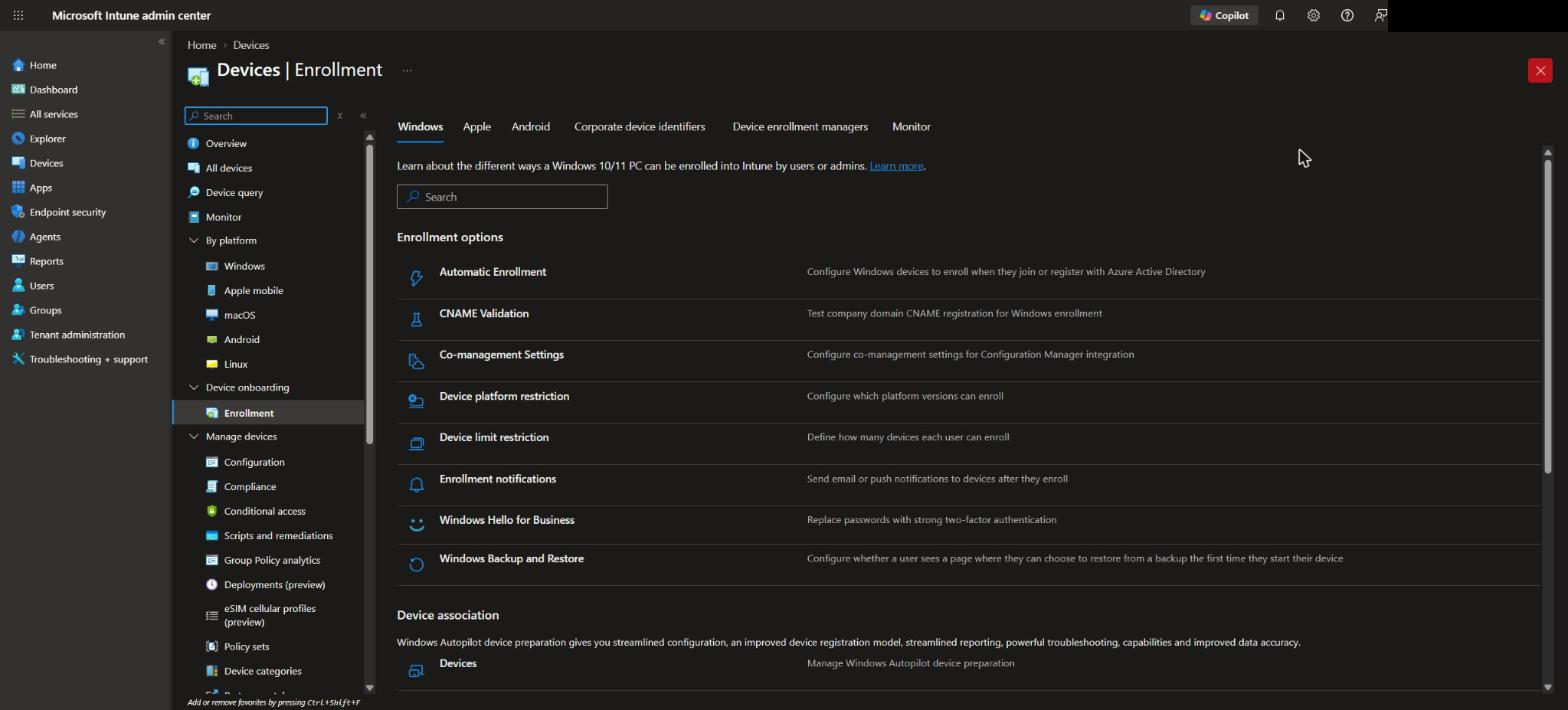
On the Windows Hello for Business page configure the following settings:
- Set Configure Windows Hello for Business to Enabled
- Set Use a Trusted Platform Module (TPM) to Required
- Set Minimum PIN length to 6 or higher
- Set Allow biometric authentication to Yes
- Set Use enhanced anti-spoofing, when available to Yes
- Click on Save
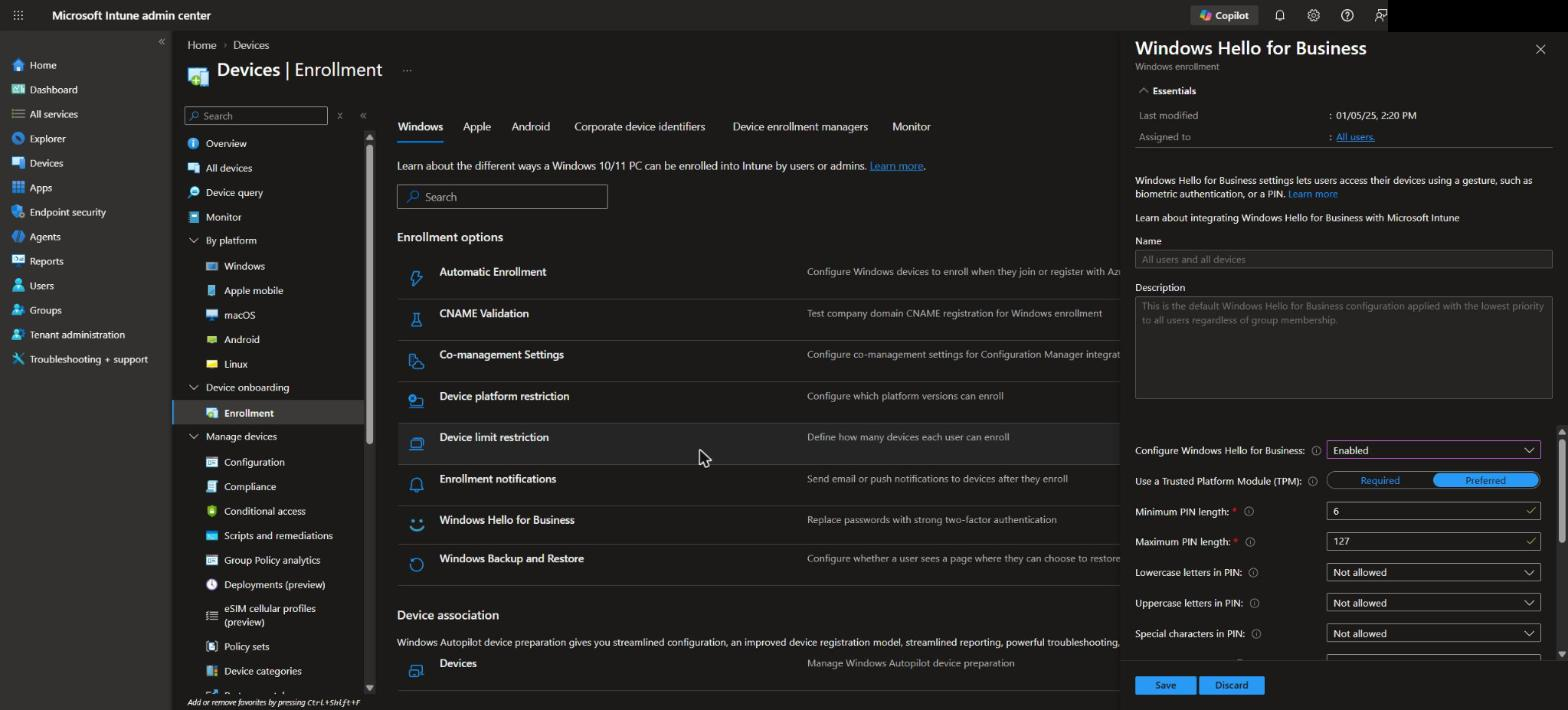
If you want to roll out Windows Hello for Business only to some groups, set Configure Windows Hello for Business to Disabled here and continue with Step 2.
Step 2: Create an Account protection policy for selected groups
In this section we will create a policy that you can assign to a group. It is applied during the regular policy refresh, so it also reaches existing devices.
- Go to intune.microsoft.com
- Click on Endpoint security
- Click on Account protection
- Click on Create Policy
- For Platform choose Windows
- For Profile choose Account protection
- Click on Create
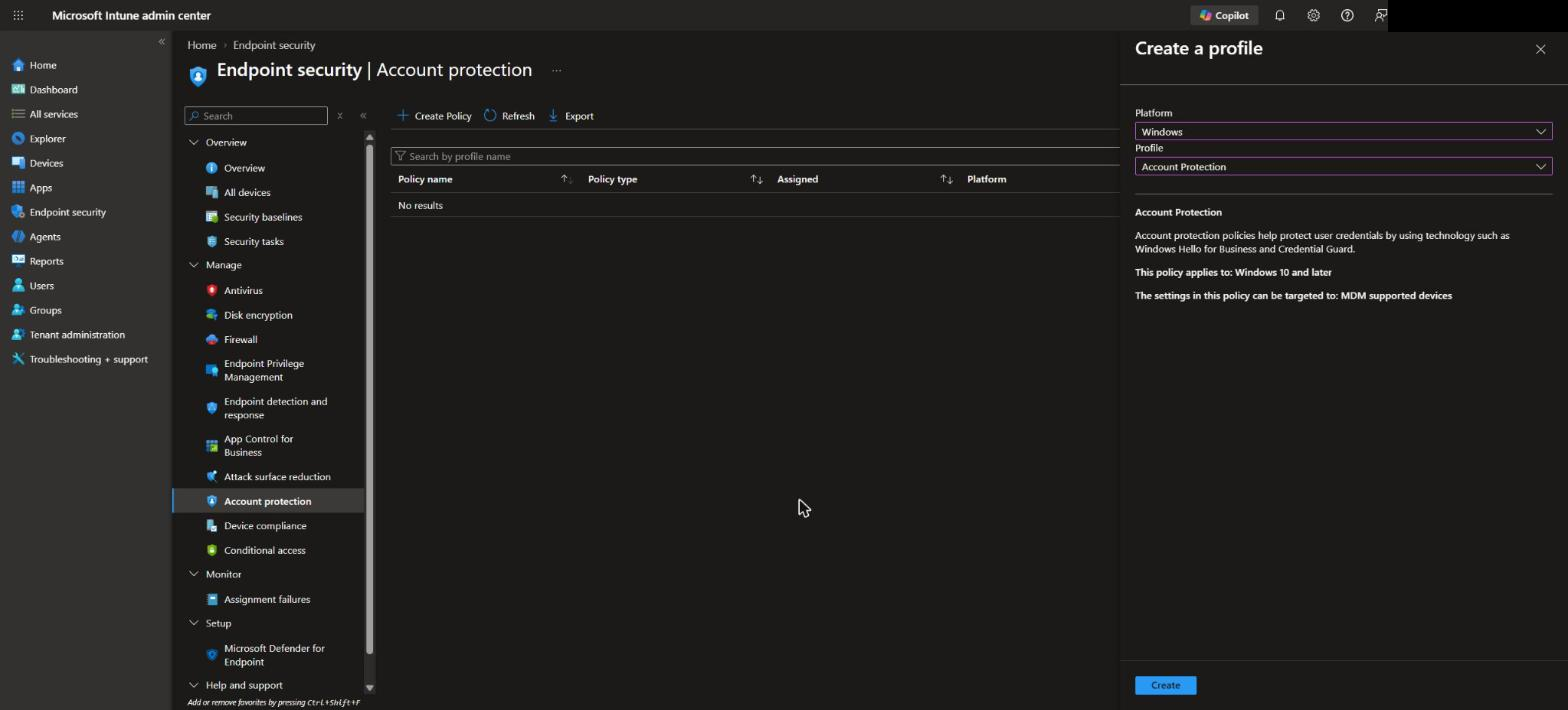
On the Basics page give it a Name and Description (Optional) and click on Next.
On the Configuration settings page configure the Windows Hello for Business settings:
- Set Use Windows Hello For Business (Device) to true
- Enable Require Security Device to require a TPM
- Set the Minimum PIN Length to 6 or higher
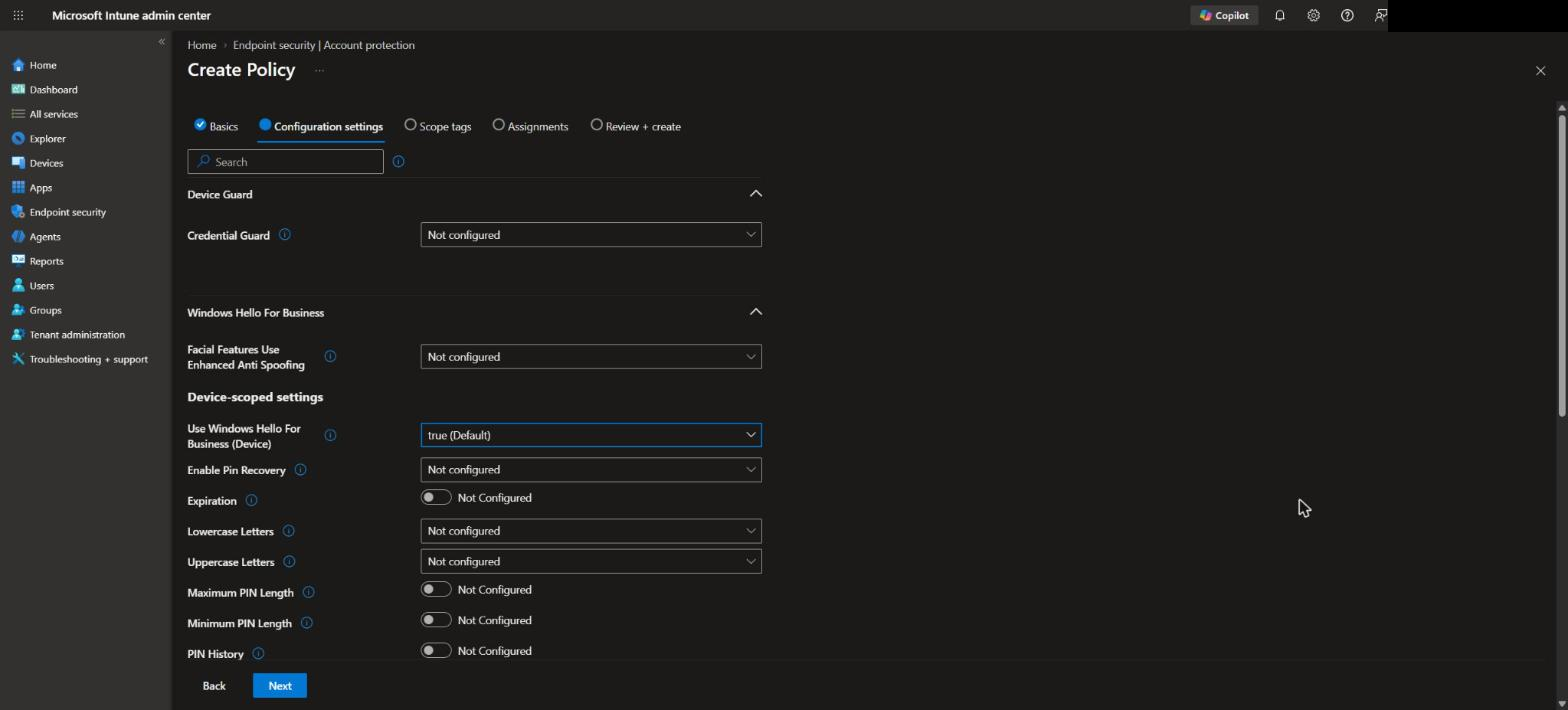
On the Assignments page, select your group and click on Next.
Review + create the policy.
Good to know: the profile contains device-scoped and user-scoped settings. A user policy takes precedence over a device policy, so do not configure the same setting in both scopes with different values.
Step 3: Check the result on the device
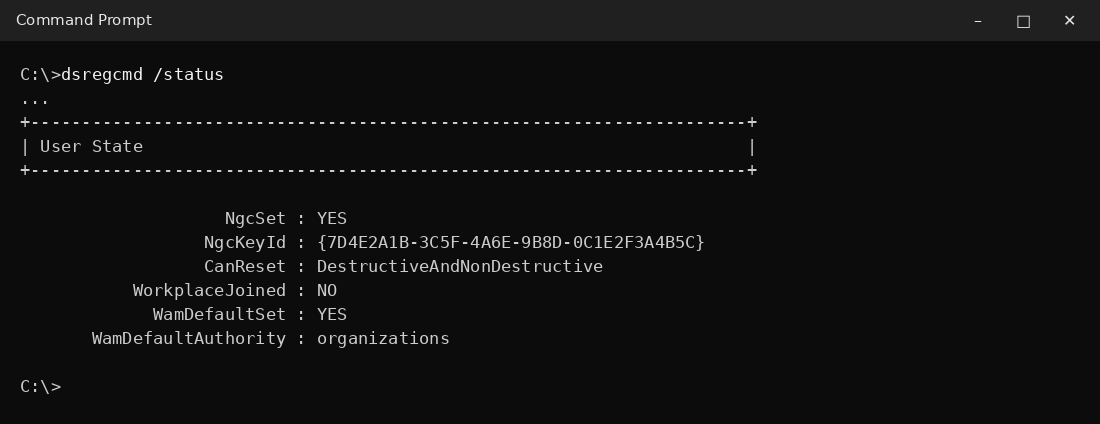
After the next sync the user is asked to set up Windows Hello for Business at sign-in. To check the status on a device, follow these steps:
- Open a Command Prompt as the signed-in user
- Run the command below
- In the output, look for NgcSet : YES. This means the user has enrolled Windows Hello for Business on this device
dsregcmd /status
Conclusion
In this blog post we learned how to configure Windows Hello for Business with Microsoft Intune. You now know the difference between the tenant-wide policy and an Account protection policy, and how to check the result on a device. More details are available on Microsoft Learn: Configure Windows Hello for Business and Windows Hello for Business in Intune. If you want to go one step further, have a look at our post How to configure Multi-factor unlock with Microsoft Intune. Did you enjoy this article? Don’t forget to follow us and share this article. If you have any questions or need further assistance, feel free to reach out or leave a comment below.