
Welcome to our new blog post How to block Firefox Extensions with Microsoft Intune. In this article, we will walk through how to block extensions in Mozilla Firefox with Microsoft Intune. You can block everything and allow only approved extensions, or block single extensions.
Table of Contents
What Is the Extension Management Policy?
Firefox has one policy that controls everything around extensions: ExtensionSettings, in the Group Policy templates called Extension Management. It takes a JSON text. For every extension ID you set an installation mode: allowed, blocked, force_installed or normal_installed. The entry with the star applies to all extensions that are not listed.
Why Block Firefox Extensions?
An extension can get the permission to read and change every website the user opens. That includes your web mail and every form the user fills in. Malicious extensions are a real attack path, and a harmless extension can be sold and turned into spyware with the next update. With an allow list only the extensions you have checked can be installed.
Prerequisites
- Windows 10 or Windows 11 devices that are enrolled in Microsoft Intune
- Mozilla Firefox is installed on the devices
- The Firefox ADMX files are imported into Microsoft Intune. We show this in our post How to manage Firefox configurations with Microsoft Intune
- The Policy and Profile Manager role, or a role with higher permissions
- The extension IDs of the extensions you want to allow or block. You find the ID on the page about:support in Firefox, in the section Add-ons
How to block Firefox Extensions with Microsoft Intune
Step 1: Prepare the JSON text
To block all extensions and allow only single ones, use this text. Replace the ID with the ID of your extension.
{
  "*": {
    "installation_mode": "blocked",
    "blocked_install_message": "Extensions are managed by your IT department."
  },
  "{446900e4-71c2-419f-a6a7-df9c091e268b}": {
    "installation_mode": "allowed"
  }
}
If you only want to block a single extension and allow everything else, use this text instead:
{
  "extension-id@example.com": {
    "installation_mode": "blocked"
  }
}
Step 2: Create the configuration profile
Firefox settings are not part of the Settings catalog. They come from the Firefox ADMX files that you imported into Microsoft Intune. Just follow the steps below.
- Go to intune.microsoft.com
- Click on Devices
- Click on Windows
- Click on Configuration
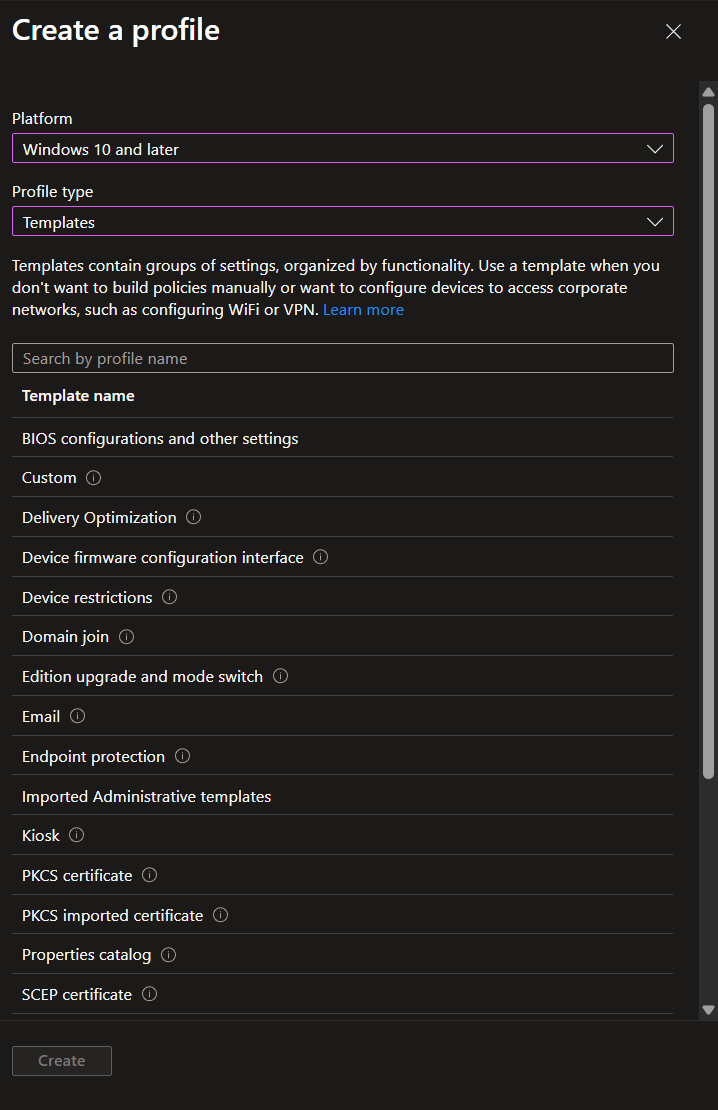
- Click on Create and New Policy
- For Platform choose Windows 10 and later
- For Profile type choose Templates
- Click on Imported Administrative templates
- Click on Create
On the Basics page give it a Name, for example Firefox block extensions, and click on Next. On the Configuration settings page:
- Click on Computer Configuration and navigate to Mozilla > Firefox > Extensions
- Open Extension Management
- Set it to Enabled
- Paste your JSON text into the field
- Click on OK
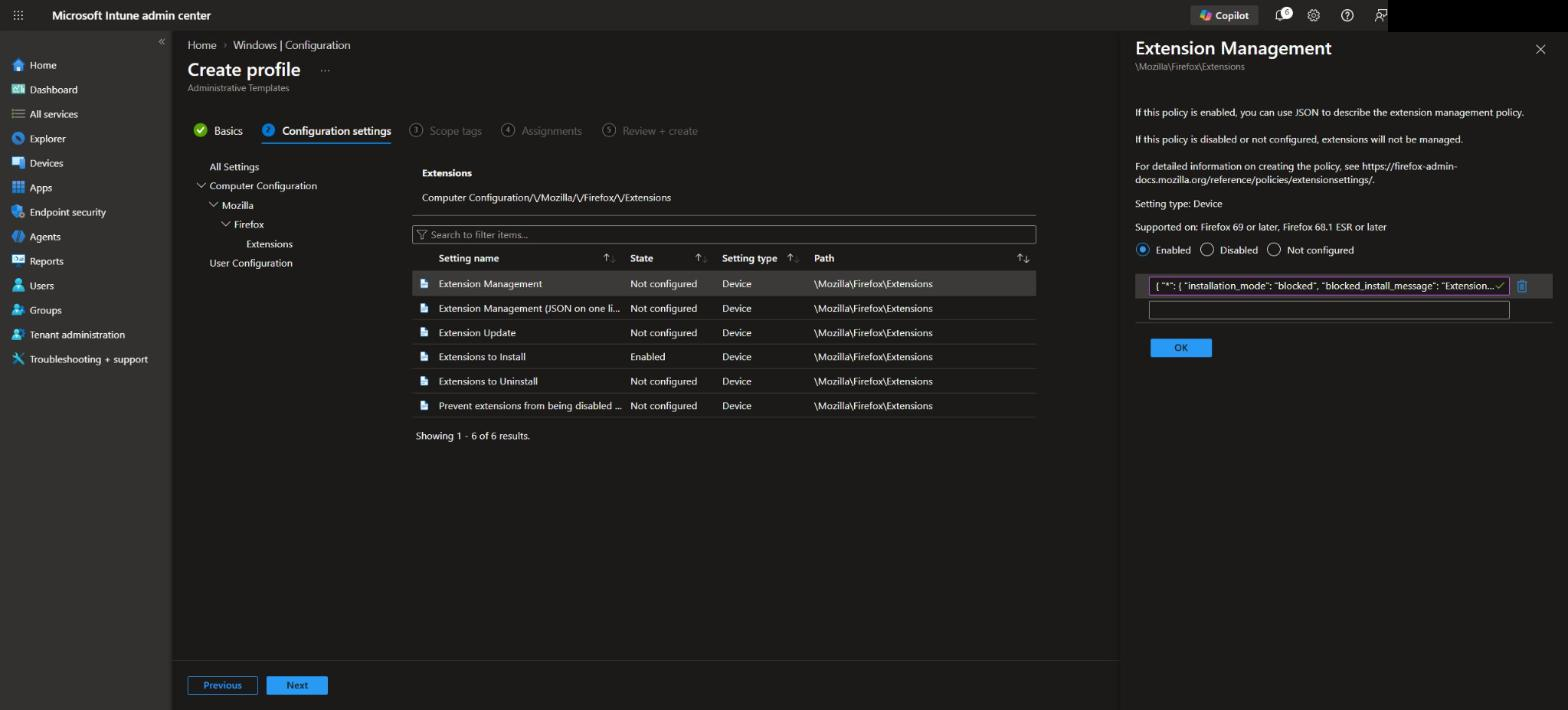
The JSON text has to be valid. A missing comma or bracket is enough and Firefox ignores the whole policy. Check the text with a JSON validator before you paste it.
Step 3: Assign the policy
Now we assign the policy and finish the wizard.
- On the Scope tags page, add your scope tags if applicable and click on Next
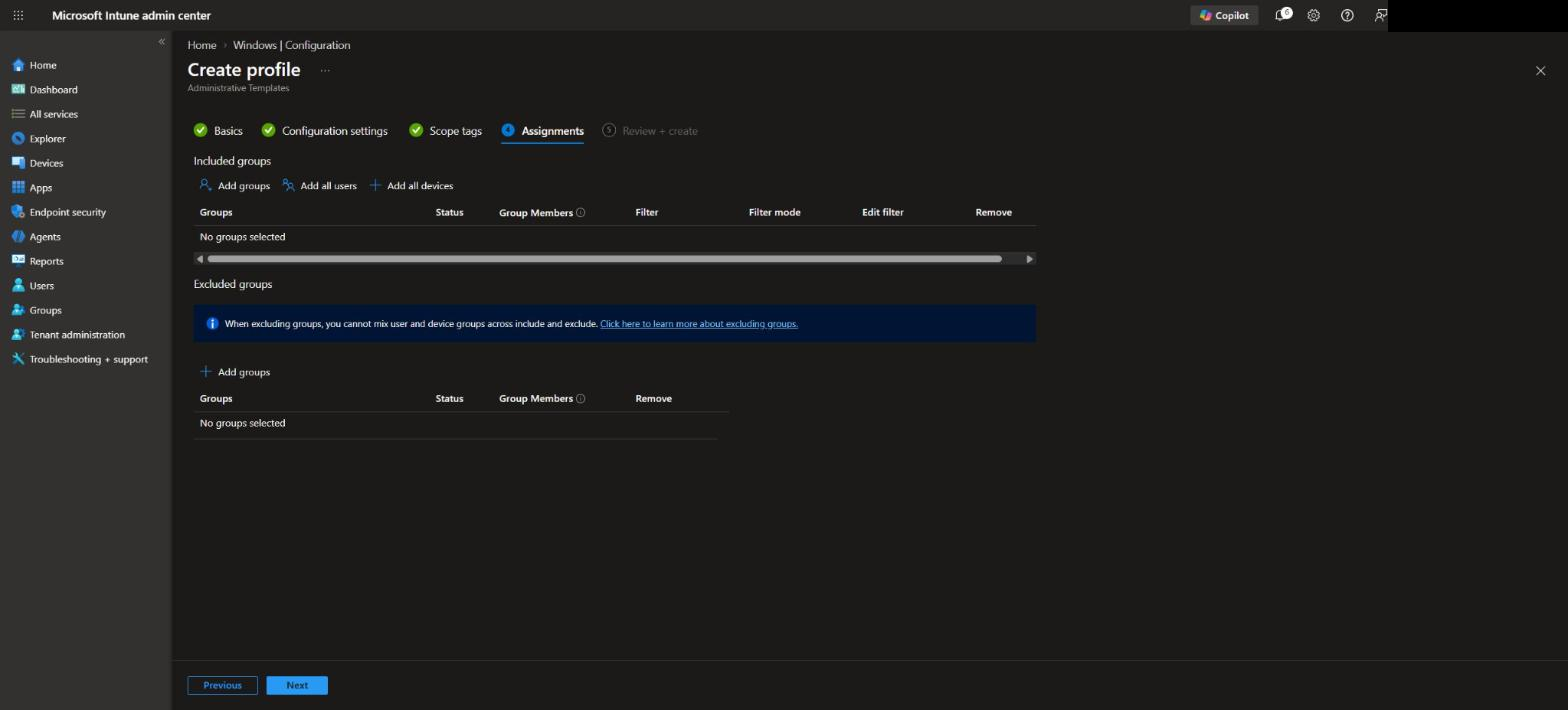
- On the Assignments page, select the group you want to deploy the policy to. We recommend starting with a test group
- Click on Next
- Click on Review + create
Step 4: Check the result on the device
After the next sync the setting arrives on the device. To speed this up, open the Company Portal app on a test device and click on Sync, or select the device in the Intune admin center and click on Sync.
- Open Firefox on a test device
- Enter about:policies in the address bar
- The policy is listed under Active
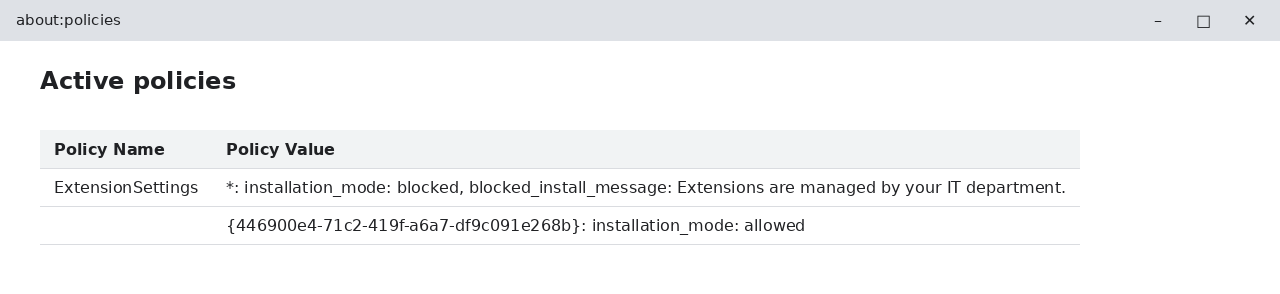
If the policy is listed under Errors instead, the JSON text is not valid. Then try to install an extension that is not allowed. Firefox shows your message and blocks the installation. Extensions that are already installed and are now blocked get disabled.
Conclusion
In this blog post we learned how to block Firefox Extensions with Microsoft Intune. You now know how the Extension Management policy works and how to build an allow list or a block list for Firefox extensions. More details are available here: Firefox policy templates. You might also like: How to manage Firefox configurations with Microsoft Intune, How to install Firefox with Microsoft Intune, How to block Google Chrome Extensions with Microsoft Intune. Did you enjoy this article? Don’t forget to follow us and share this article. If you have any questions or need further assistance, feel free to reach out or leave a comment below.