

Welcome to our new blog post How to deploy the Windows 11 26H2 Security Baseline with Microsoft Intune. Microsoft released the security baseline for Windows 11, version 26H2 in Microsoft Intune in the week of October 5, 2026. In this article, we will walk through what the baseline is, why you should move to the new version, and how to either create a new baseline profile or update an existing one without causing policy conflicts.
Table of Contents
What Is the Windows 11 26H2 Security Baseline?
A security baseline in Microsoft Intune is a preconfigured group of Windows settings with the values that the Microsoft security teams recommend. Instead of building hundreds of settings by hand, you deploy one profile and adjust only what your organization needs. The Windows 11, version 26H2 baseline is the latest available Windows security baseline in Intune. It includes new settings, updated default values and revised security guidance.
One thing to know: the Configure NetBIOS settings policy is not part of this release, because it is currently only supported on Windows Insider builds. Microsoft plans to add it in a later baseline update.
Why Update to the Windows 11 26H2 Security Baseline?
Existing baseline profiles do not update automatically. As soon as a new version is available, the settings in your older profiles become read-only. You can still change the name, description and assignments, but you can no longer change any setting. If you want to keep adjusting your baseline and follow the current Microsoft recommendations, you need to move to the new version.
Prerequisites
- A Microsoft Intune Plan 1 subscription
- Windows 11 devices that are enrolled in Microsoft Intune
- An account with the Policy and Profile Manager role, or a custom role with the Security baselines permissions Assign, Create, Delete, Read and Update
- A test group with a few pilot devices
How to deploy the Windows 11 26H2 Security Baseline with Microsoft Intune
There are two ways to get to the new baseline. If you have never used a Windows security baseline, follow Step 1. If you already have a baseline profile from an older version, go directly to Step 2.
Step 1: Create a new Security Baseline profile
In this section we will create a new profile based on the Windows 11, version 26H2 baseline. Just follow the steps below.
- Go to intune.microsoft.com
- Click on Endpoint security
- Click on Security baselines
- Select the Security Baseline for Windows
- Click on Create policy
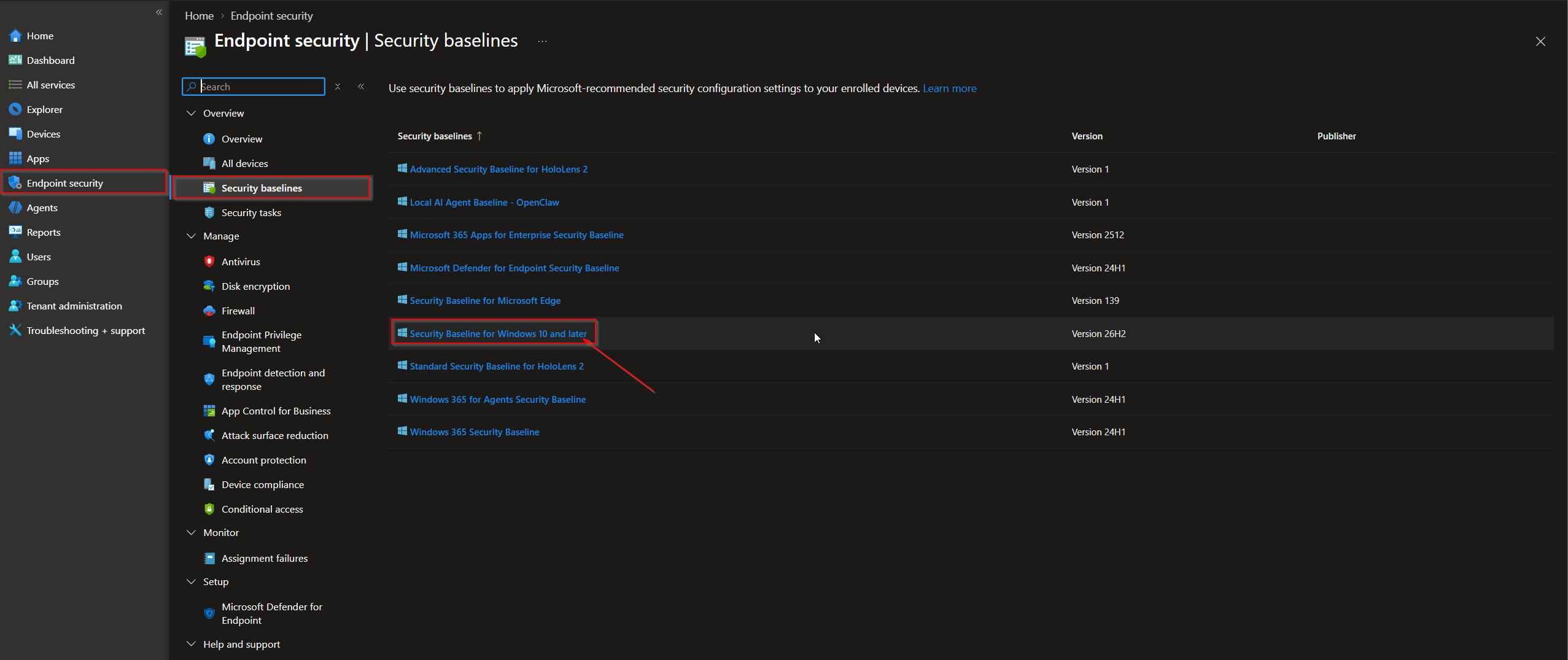
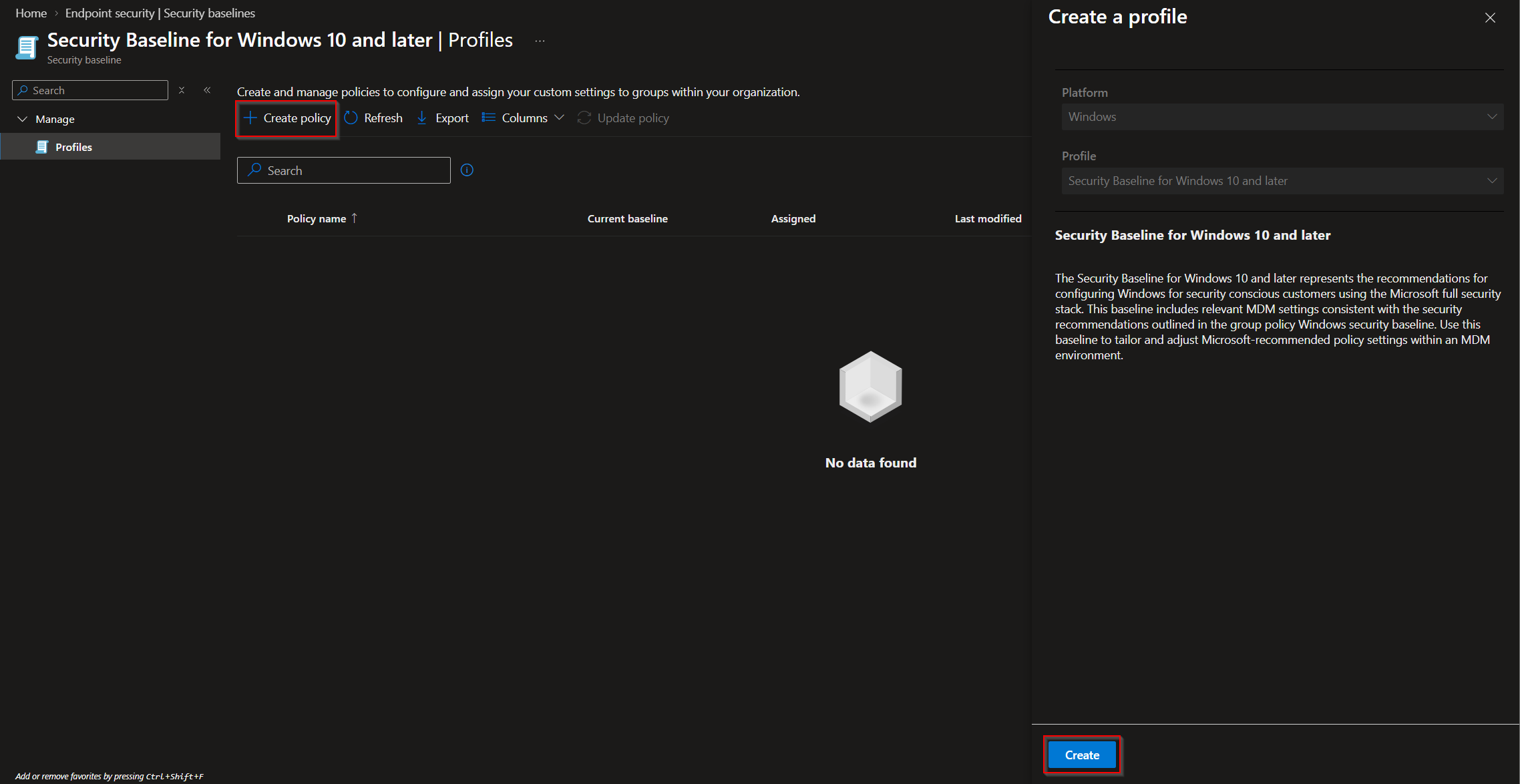
On the Basics page give it a Name and Description (Optional) and click on Next.
On the Configuration settings page:
- Expand a group to review its settings
- Use the Search bar to find a specific setting
- Change a default value only if you have a business reason for it and document why
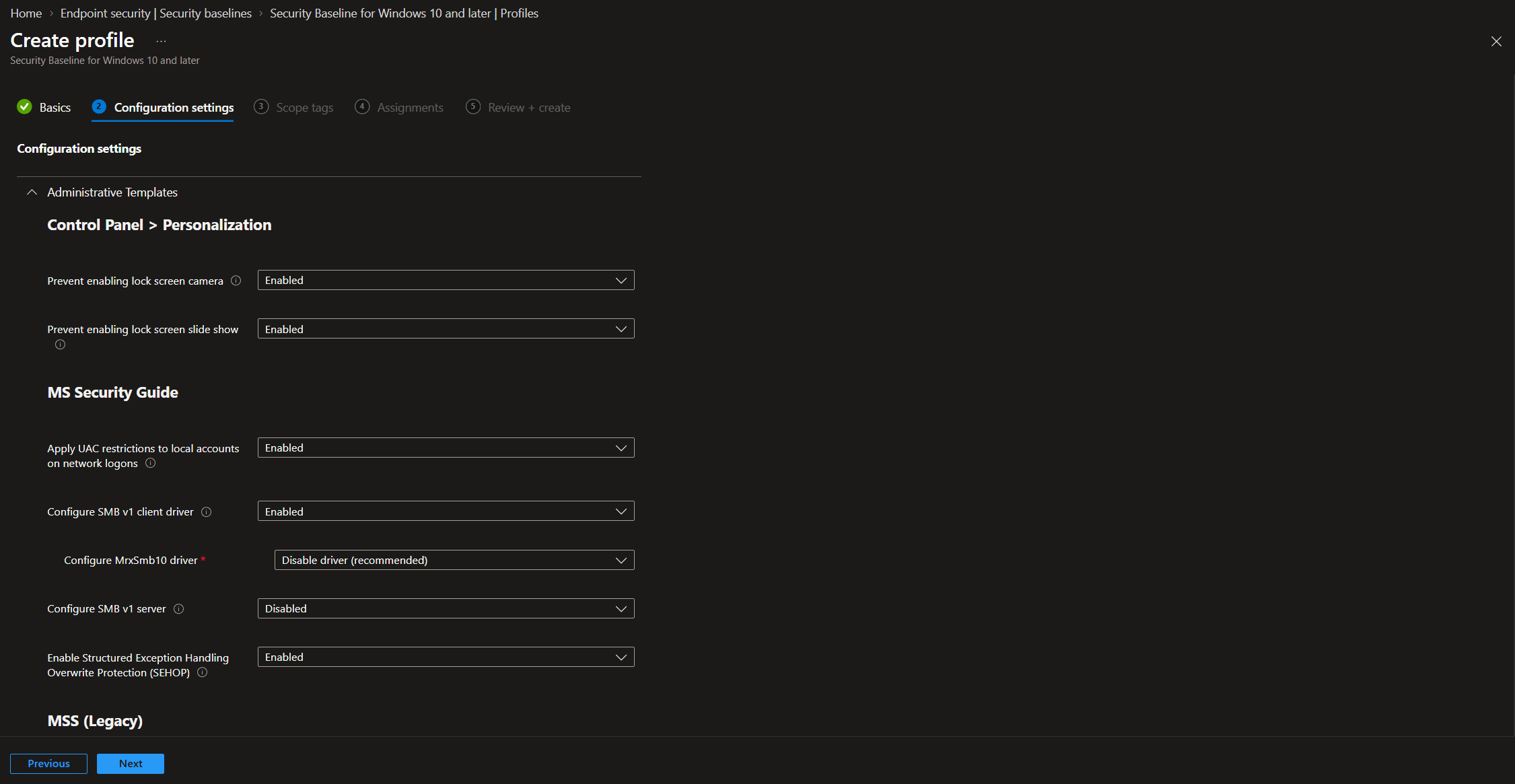
On the Scope tags page, add your scope tags if applicable and click on Next.
On the Assignments page, select your test group first and click on Next.
Review + create the profile.
Intune deploys the profile to the assigned groups immediately. That is why you should always start with a small test group.
Step 2: Update an existing Security Baseline profile to 26H2
If you already use an older baseline version, you do not have to start from scratch. Intune creates a side by side copy of your profile on the new version. The original profile stays unchanged.
- Go to intune.microsoft.com
- Click on Endpoint security and Security baselines
- Select the Security Baseline for Windows
- Select the checkbox of the profile you want to update
- Click on Update Version
On the Update Version pane choose one of the two methods:
- Accept baseline changes but keep my existing setting customizations: your own changes are applied to the new version. This is the right choice in most cases.
- Accept baseline changes and discard existing setting customizations: you get a clean profile with the new default values.
Click on Create, give the new profile a Name and review the Configuration settings.
Important: scope tags and assignments are not carried over to the new profile. You have to set them again.
Step 3: Test the new baseline and remove the old one
If the old and the new profile are assigned to the same devices, you will get conflicts. Move your devices in stages:
- Assign the new profile to your test group and exclude this group from the old profile.
- Check the result under Endpoint security, Security baselines, your profile, and look for devices with the status Error or Conflict.
- Move the remaining groups to the new profile and remove them from the old one.
- Delete the old profile once it is no longer assigned to any group.
Keep in mind that a setting which is no longer managed by a baseline does not automatically reset on the device. It keeps its last value until another policy changes it.
Conclusion
In this blog post we learned how to deploy the Windows 11 26H2 Security Baseline with Microsoft Intune. You now know how to create a new baseline profile, how to update an existing one and how to avoid conflicts during the change. For the full list of changed settings, have a look at the Microsoft Security Baselines blog and the Microsoft Learn documentation. Did you enjoy this article? Don’t forget to follow us and share this article. If you have any questions or need further assistance, feel free to reach out or leave a comment below.