
Welcome to our new blog post How to deploy Azure VPN Client and Profile with Microsoft Intune. In this article, we will walk through how to install the Azure VPN Client on your Windows devices and how to deploy the matching VPN profile with Microsoft Intune, so that your users only have to click on Connect.
Table of Contents
What Are We Going to Deploy?
Two things are needed for an Azure Point-to-Site VPN with Microsoft Entra ID authentication: the Azure VPN Client app and a VPN profile with the settings of your gateway. Microsoft Intune can deliver both. The app comes from the Microsoft Store and the profile is deployed with a custom configuration profile.
Why Deploy the VPN with Microsoft Intune?
Without Intune every user has to install the app and import an xml file. That means instructions, support tickets and outdated profiles. With Intune the VPN is already there when the user signs in for the first time, and when the gateway changes you update one profile for all devices.
Prerequisites
- An Azure VPN gateway that is configured for Point-to-Site with Microsoft Entra ID authentication
- The file azurevpnconfig.xml from the VPN client profile package
- Windows 10 version 19H2 or later, enrolled in Microsoft Intune. Microsoft recommends Windows 11
- A group with the users or devices that should get the VPN
How to deploy Azure VPN Client and Profile with Microsoft Intune
Step 1: Deploy the Azure VPN Client
First we add the Azure VPN Client as a Microsoft Store app.
- Go to intune.microsoft.com
- Click on Apps
- Click on Windows
- Click on Create
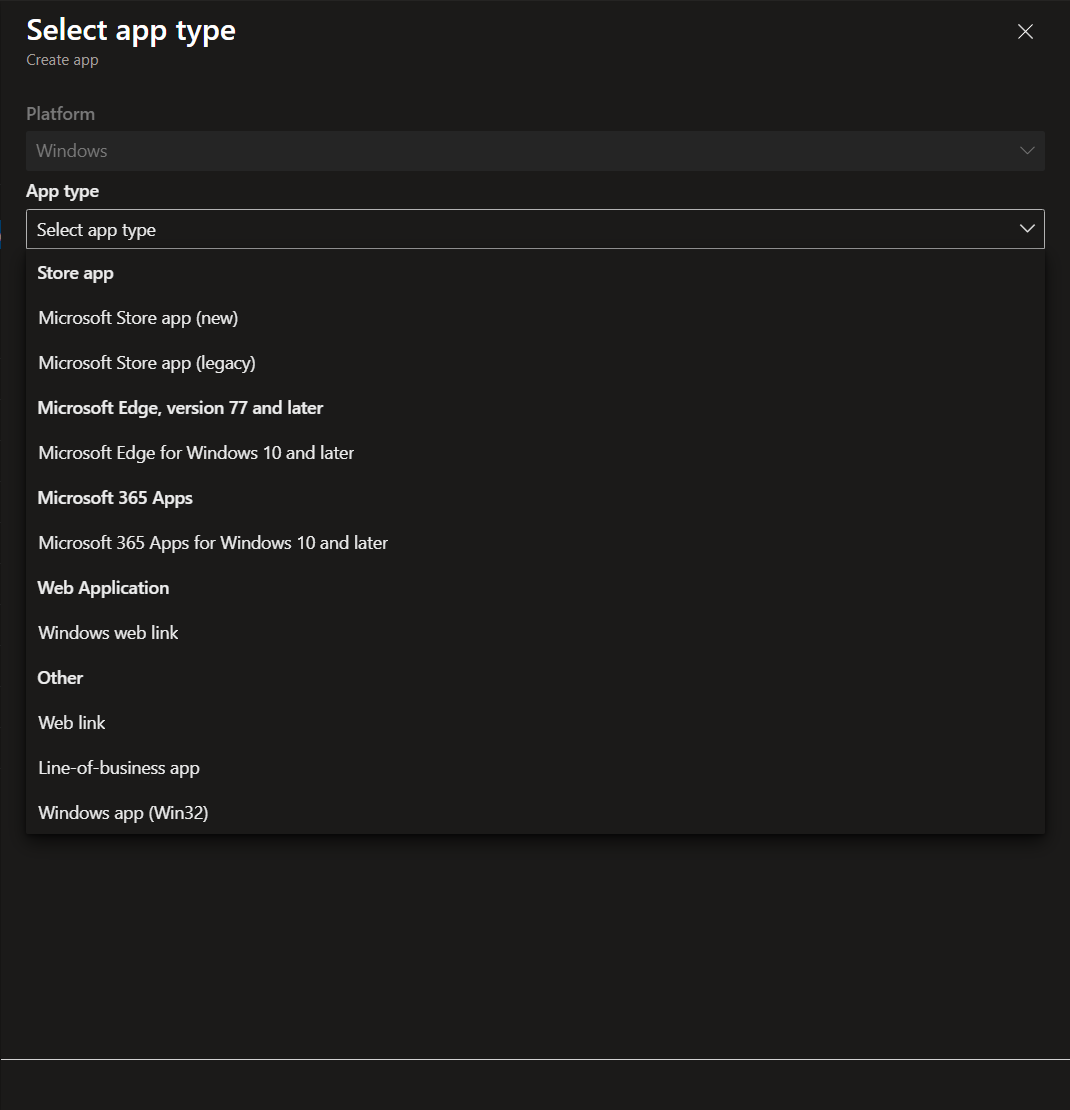
- Choose App type Microsoft Store app (new)
- Click on Select
- Click on Search the Microsoft Store app (new)
- Search for Azure VPN Client and select it
- Click on Next
On the Assignments page add your group under Required, click on Next and then on Create.
Step 2: Create the VPN profile XML
The profile is an xml file that combines a Windows VPN profile with the content of your azurevpnconfig.xml. Copy the following template into a text editor.
<VPNProfile>
  <RememberCredentials>true</RememberCredentials>
  <AlwaysOn>true</AlwaysOn>
  <TrustedNetworkDetection>contoso.com,test.corp.contoso.com</TrustedNetworkDetection>
  <PluginProfile>
    <ServerUrlList>azuregateway-00000000-0000-0000-0000-000000000000-000000000000.vpn.azure.com;myVpn</ServerUrlList>
    <CustomConfiguration>

    </CustomConfiguration>
    <PluginPackageFamilyName>Microsoft.AzureVpn_8wekyb3d8bbwe</PluginPackageFamilyName>
  </PluginProfile>
  <RegisterDNS>false</RegisterDNS>
</VPNProfile>
Now adjust the template:
- Replace the value in ServerUrlList with the server address from your azurevpnconfig.xml, followed by a semicolon and a friendly name
- Change TrustedNetworkDetection to the DNS suffix of your internal network, or remove the line if you do not need it
- Set AlwaysOn to false if the users should connect manually
- Copy the complete content of your azurevpnconfig.xml and paste it between the CustomConfiguration tags
- Save the file with the extension .xml
Note the value between the name tags in your azurevpnconfig.xml. This is the connection name the users will see, and you need it in the next step.
Step 3: Create the custom configuration profile
Now we create the profile in Microsoft Intune.
- Go to intune.microsoft.com
- Click on Devices
- Click on Windows
- Click on Configuration
- Click on Create and New Policy
- For Platform choose Windows 10 and later
- For Profile type choose Templates
- Click on Custom
- Click on Create
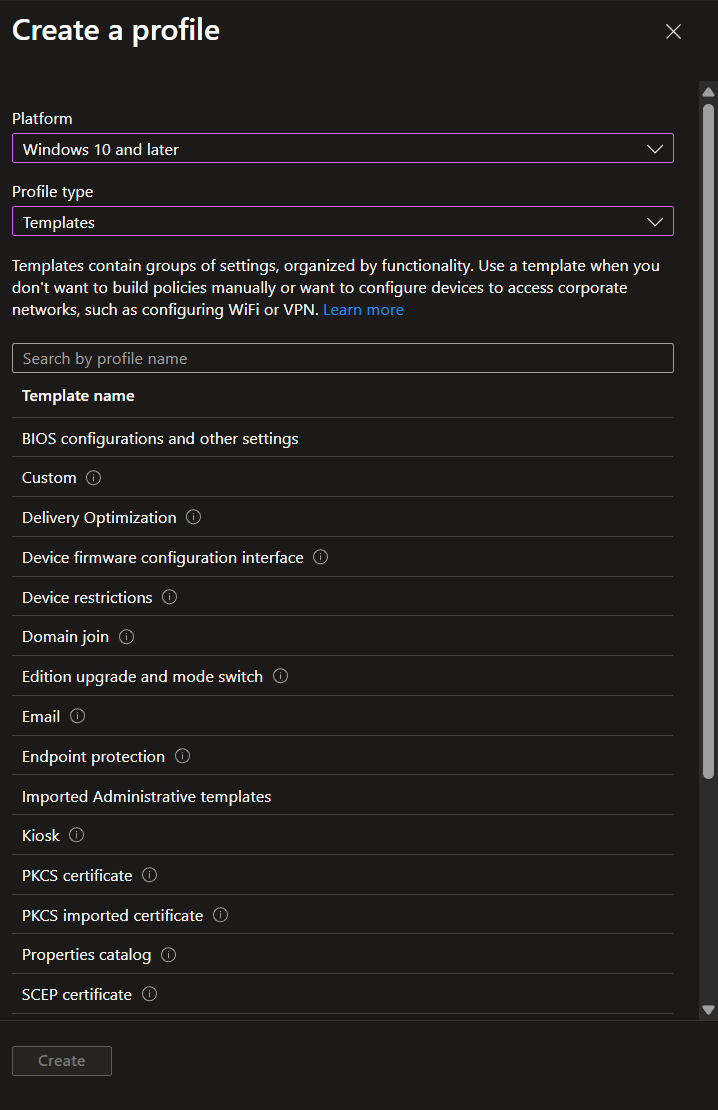
On the Basics page give it a Name and Description (Optional) and click on Next. On the Configuration settings page click on Add and enter:
- Name: a name for the setting
- OMA-URI: ./User/Vendor/MSFT/VPNv2/<name of your connection>/ProfileXML
- Data type: String (XML file)
- Select the xml file you saved in Step 2
- Click on Save
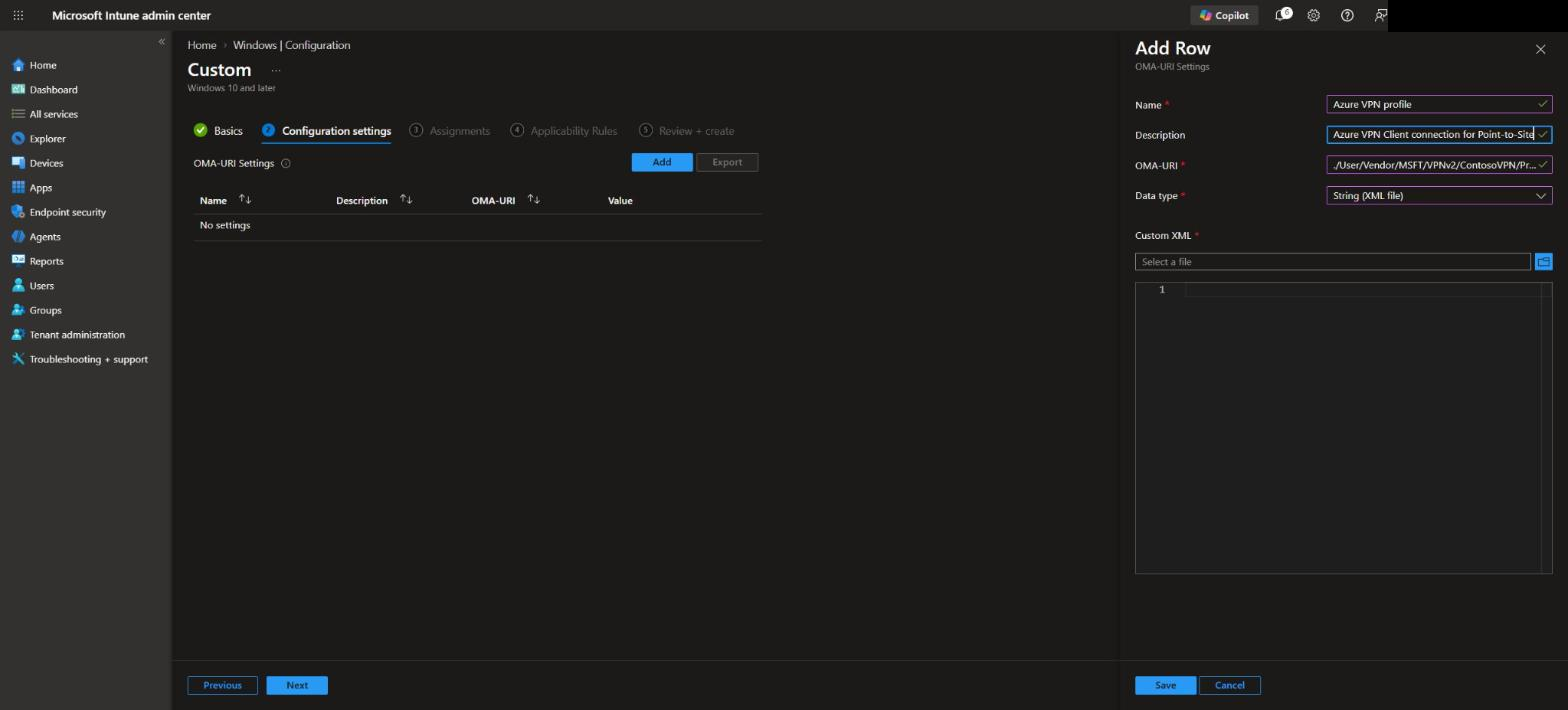
Click on Next, assign the profile to your group on the Assignments page, skip the Applicability Rules and Review + create the profile.
Step 4: Check the result on the device
After the next sync open the Azure VPN Client on a test device. The connection is listed and the user can click on Connect and sign in with the Microsoft Entra ID account.
Conclusion
In this blog post we learned how to deploy Azure VPN Client and Profile with Microsoft Intune. You now know how to deliver the Azure VPN Client and a preconfigured VPN profile to your Windows devices. More details are available here: Create custom Intune profiles to deploy VPN client profiles. You might also like: How to manually setup Azure Point-to-Site VPN (P2S) on Windows. Did you enjoy this article? Don’t forget to follow us and share this article. If you have any questions or need further assistance, feel free to reach out or leave a comment below.