
Welcome to our new blog post How to install Firefox Extensions with Microsoft Intune. In this article, we will walk through how to install Firefox extensions automatically on your Windows devices with Microsoft Intune, so that your users do not have to install and configure them on their own.
Table of Contents
What Are Firefox Extensions?
Extensions, also called add-ons, add features to Firefox, for example a password manager or an ad blocker. Users normally install them from addons.mozilla.org. With a policy you can install extensions for all users and also prevent that they are removed.
Why Install Extensions with Microsoft Intune?
If your company uses a password manager, every user needs its extension in every browser. Explaining this to every new employee costs time, and some will never install it. With a policy the extension is simply there after the first start of Firefox, and it stays there.
Prerequisites
- Windows 10 or Windows 11 devices that are enrolled in Microsoft Intune
- Mozilla Firefox is installed on the devices
- The Firefox ADMX files are imported into Microsoft Intune. We show this in our post How to manage Firefox configurations with Microsoft Intune
- The Policy and Profile Manager role, or a role with higher permissions
- The download address of the extension. For an extension from addons.mozilla.org it has this format: https://addons.mozilla.org/firefox/downloads/latest/<name of the extension>/latest.xpi
How to install Firefox Extensions with Microsoft Intune
Step 1: Find the address of the extension
The name of the extension is the last part of its address on addons.mozilla.org.
- Go to https://addons.mozilla.org and open the page of the extension
- Copy the name from the address bar, for example bitwarden-password-manager
- Build the download address: https://addons.mozilla.org/firefox/downloads/latest/bitwarden-password-manager/latest.xpi
Step 2: Create the configuration profile
Firefox settings are not part of the Settings catalog. They come from the Firefox ADMX files that you imported into Microsoft Intune. Just follow the steps below.
- Go to intune.microsoft.com
- Click on Devices
- Click on Windows
- Click on Configuration
- Click on Create and New Policy
- For Platform choose Windows 10 and later
- For Profile type choose Templates
- Click on Imported Administrative templates
- Click on Create
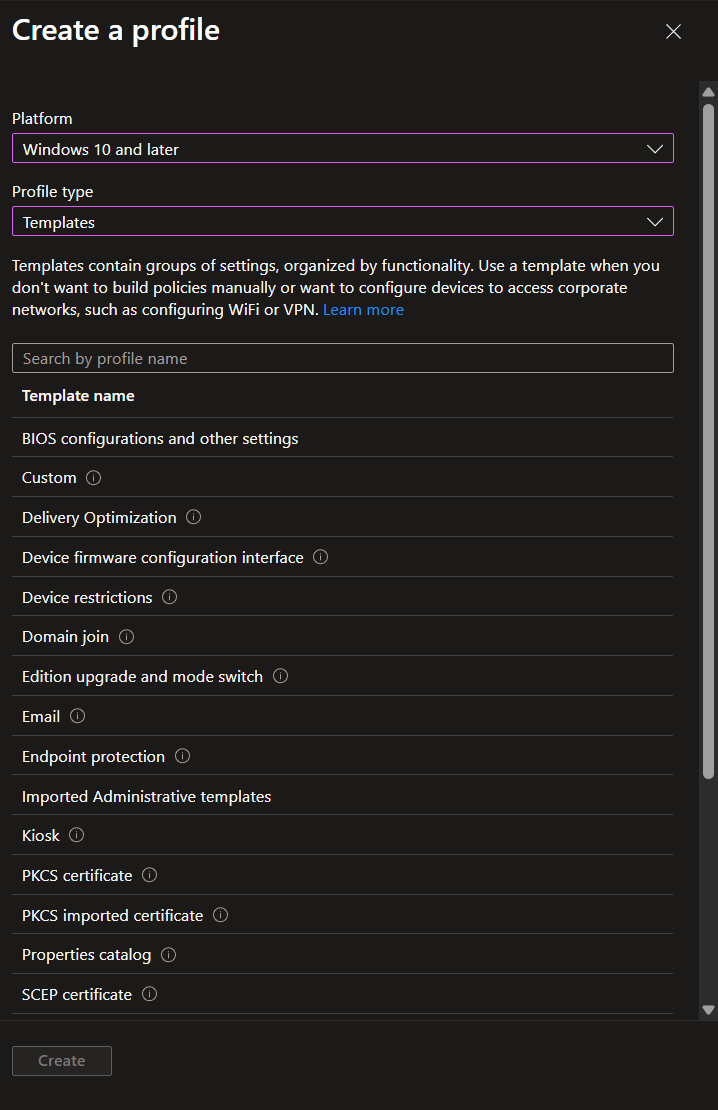
On the Basics page give it a Name, for example Firefox install extensions, and click on Next. On the Configuration settings page:
- Click on Computer Configuration and navigate to Mozilla > Firefox > Extensions
- Open Extensions to Install
- Set it to Enabled
- Enter the download address of the extension. Use one line per extension
- Click on OK
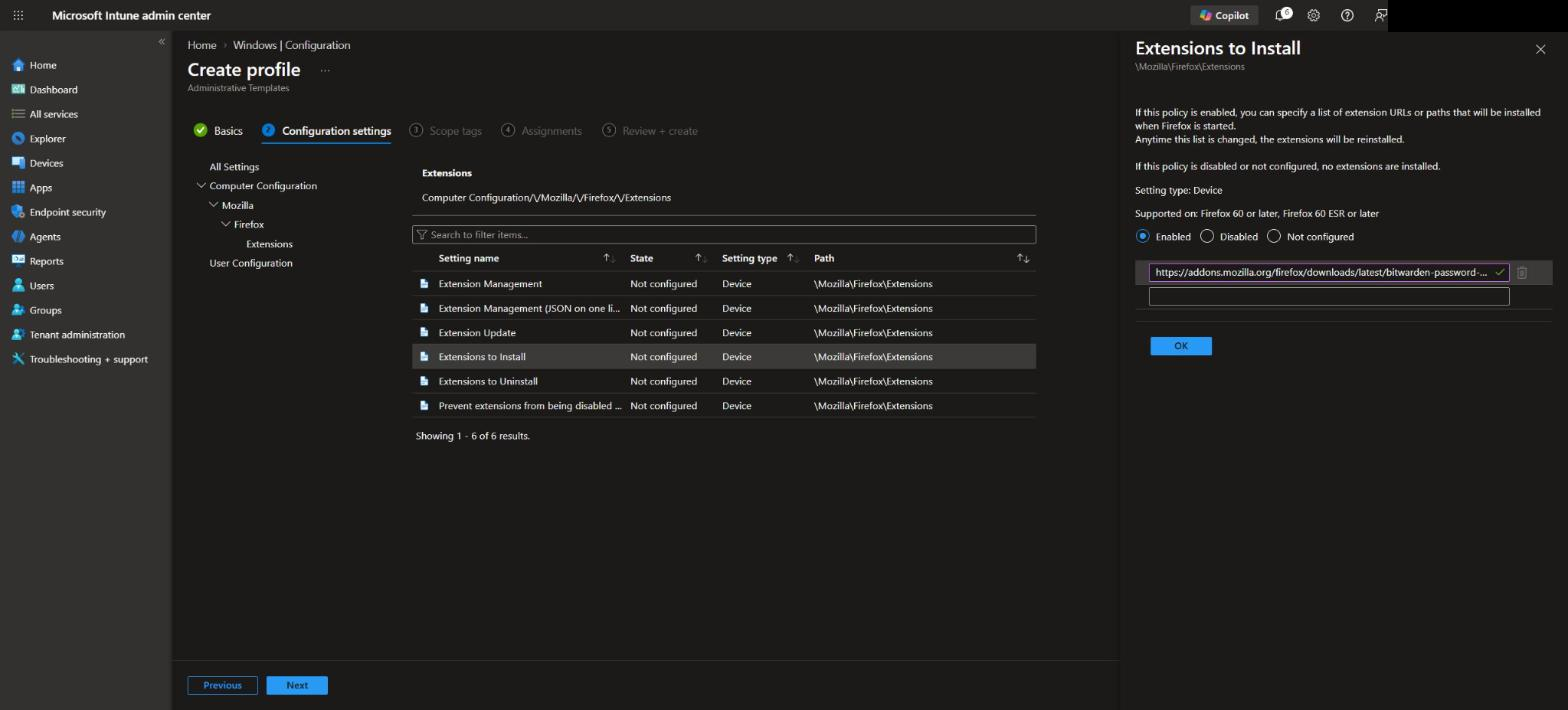
If the users should not be able to remove or disable the extension, also open Prevent extensions from being disabled or removed, set it to Enabled and enter the extension ID. You find the ID on the page about:support in Firefox, in the section Add-ons.
Step 3: Assign the policy
Now we assign the policy and finish the wizard.
- On the Scope tags page, add your scope tags if applicable and click on Next
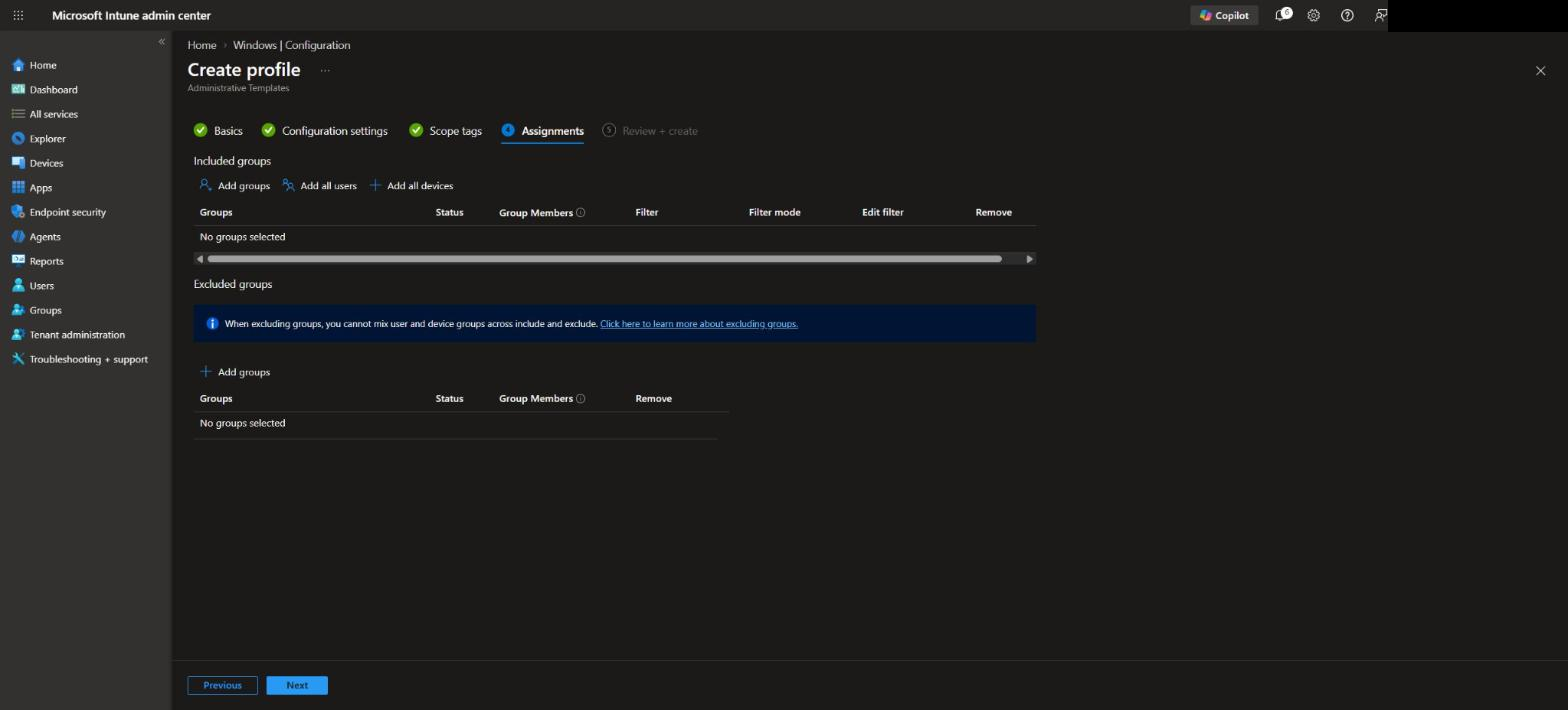
- On the Assignments page, select the group you want to deploy the policy to. We recommend starting with a test group
- Click on Next
- Click on Review + create
Step 4: Check the result on the device
After the next sync the setting arrives on the device. To speed this up, open the Company Portal app on a test device and click on Sync, or select the device in the Intune admin center and click on Sync.
- Open Firefox on a test device
- Enter about:policies in the address bar
- The policy is listed under Active
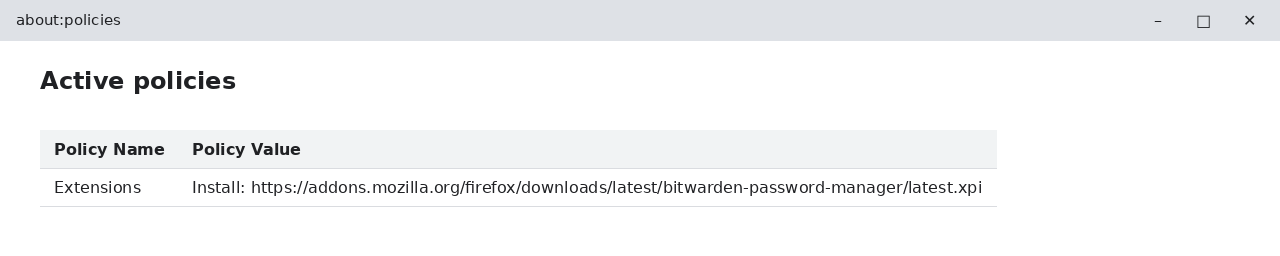
Open the menu and click on Add-ons and themes. The extension is installed. It can take one restart of Firefox until it appears.
Conclusion
In this blog post we learned how to install Firefox Extensions with Microsoft Intune. You now know how to find the download address of an extension and how to install and lock it for all users. More details are available here: Firefox policy templates. You might also like: How to manage Firefox configurations with Microsoft Intune, How to install Firefox with Microsoft Intune, How to install Edge Extensions with Microsoft Intune. Did you enjoy this article? Don’t forget to follow us and share this article. If you have any questions or need further assistance, feel free to reach out or leave a comment below.