
Welcome to our new blog post How to configure Attack Surface Reduction Rules with Microsoft Intune. In this article, we will walk through what Attack Surface Reduction (ASR) rules are, why they are one of the most effective protections on a Windows device, and how to roll them out with Microsoft Intune without breaking your business applications.
Table of Contents
What Are Attack Surface Reduction Rules?
Attack Surface Reduction rules are part of Microsoft Defender. They block behaviour that is typical for malware, for example an Office application that starts another process, a script that downloads and runs a file, or a tool that tries to read credentials from the LSASS process. Each rule can be set to one of these modes:
- Audit: nothing is blocked, the event is only logged
- Warn: the user gets a warning and can bypass the block
- Block: the action is blocked
- Off: the rule is disabled
Why Use Attack Surface Reduction Rules?
Most attacks on Windows devices start with a phishing mail, a macro or a script. ASR rules stop exactly these techniques before malware can run. The catch: some business applications behave in a similar way. That is why Microsoft recommends starting in Audit mode and switching to Block only after you have checked the events.
Prerequisites
- Windows 10 or later in the Pro or Enterprise edition, enrolled in Microsoft Intune
- Microsoft Defender Antivirus is the primary antivirus and runs in Active mode
- Real-time protection and Cloud-delivered protection are turned on
- A licence that includes the rules, for example Microsoft 365 Business Premium, Microsoft 365 E3 or E5, or Microsoft Defender for Endpoint Plan 1 or Plan 2
- A Microsoft Entra device group for the assignment. User groups are not supported for this policy
How to configure Attack Surface Reduction Rules with Microsoft Intune
Step 1: Create the Attack Surface Reduction policy
In this section we will create the policy in the Microsoft Intune admin center. Just follow the steps below.
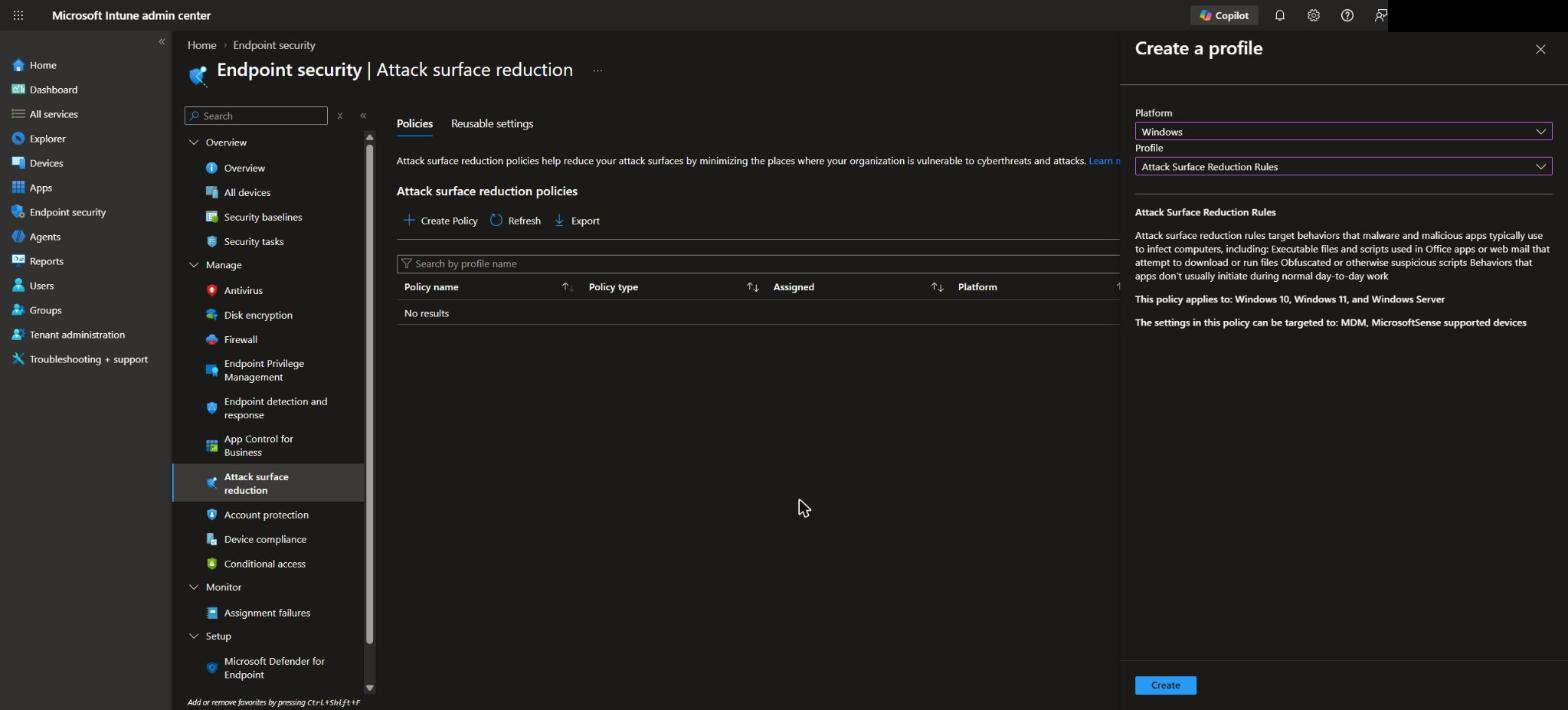
- Go to intune.microsoft.com
- Click on Endpoint security
- Click on Attack surface reduction
- Click on Create policy
- For Platform choose Windows
- For Profile choose Attack Surface Reduction Rules
- Click on Create
On the Basics page give it a Name and Description (Optional) and click on Next.
Step 2: Configure the rules
On the Configuration settings page you set the mode for each rule. We recommend the following approach.
Set the three standard protection rules to Block. Microsoft states that these can usually be enabled without testing:
- Block abuse of exploited vulnerable signed drivers (Device)
- Block credential stealing from the Windows local security authority subsystem
- Block persistence through WMI event subscription
Set all other rules to Audit first, for example:
- Block all Office applications from creating child processes
- Block executable content from email client and webmail
- Block execution of potentially obfuscated scripts
- Block Win32 API calls from Office macros
- Use advanced protection against ransomware
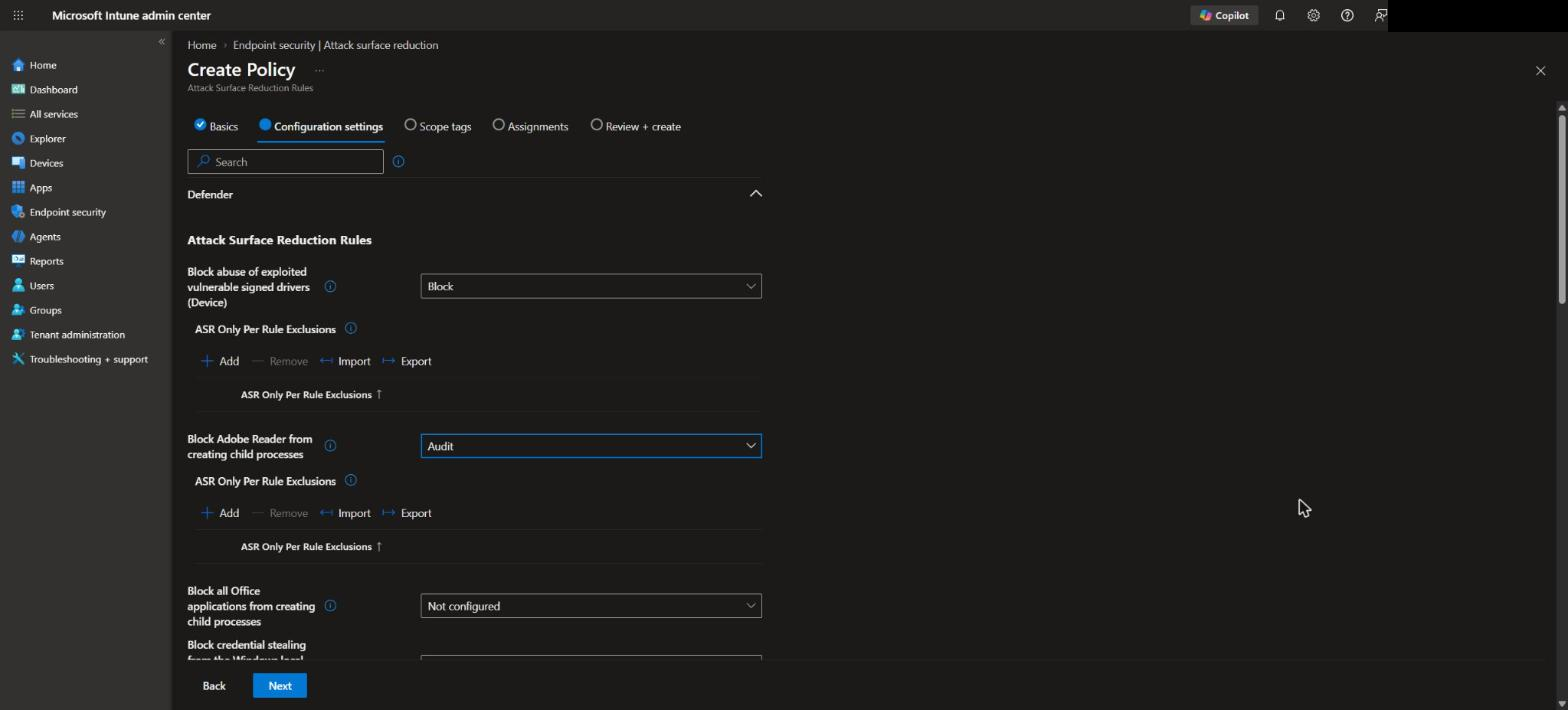
If an application needs an exception, you have two options:
- Attack surface reduction only exclusions: applies to all rules
- ASR only per rule exclusions: appears below a rule once it is set to Audit, Block or Warn and applies to this rule only. Prefer this option, because it keeps the exception as small as possible
On the Assignments page, select a device group with your pilot devices and click on Next.
Review + create the policy.
Step 3: Check the rules on the device
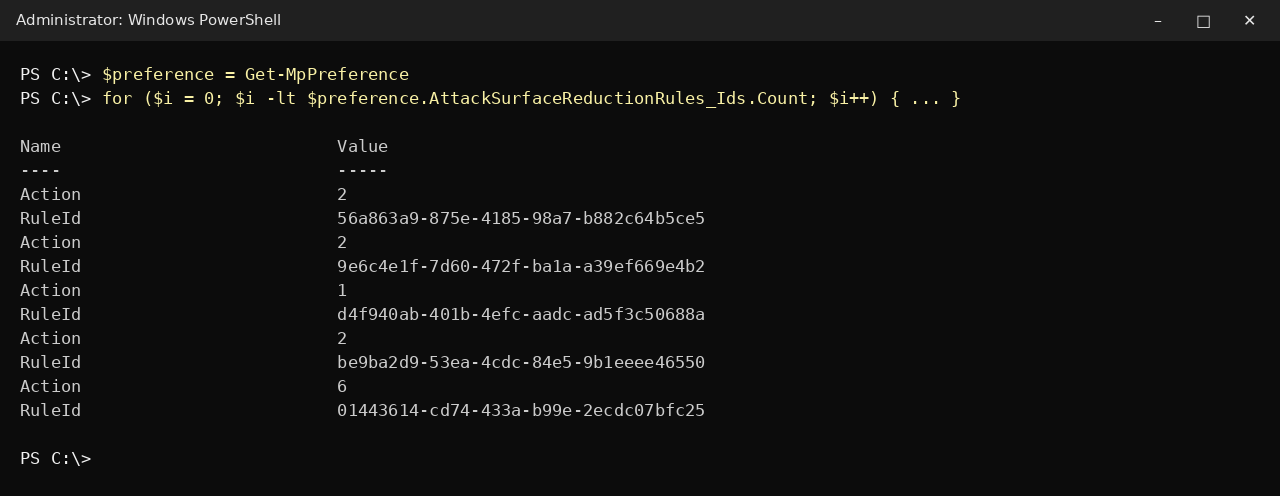
After the next sync you can check on a device whether the rules have arrived. Open PowerShell as administrator and run:
$preference = Get-MpPreference
for ($i = 0; $i -lt $preference.AttackSurfaceReductionRules_Ids.Count; $i++) {
    [pscustomobject]@{
        RuleId = $preference.AttackSurfaceReductionRules_Ids[$i]
        Action = $preference.AttackSurfaceReductionRules_Actions[$i]
    }
}
The Action shows the mode of each rule: 0 = Off, 1 = Block, 2 = Audit, 6 = Warn.
Step 4: Review the audit events and switch to Block
Let the policy run in Audit mode for two to four weeks and then check what would have been blocked.
- On a device open the Event Viewer
- Go to Applications and Services Logs, Microsoft, Windows, Windows Defender, Operational
- Filter for Event ID 1122 (rule fired in Audit mode) and 1121 (rule fired in Block mode)
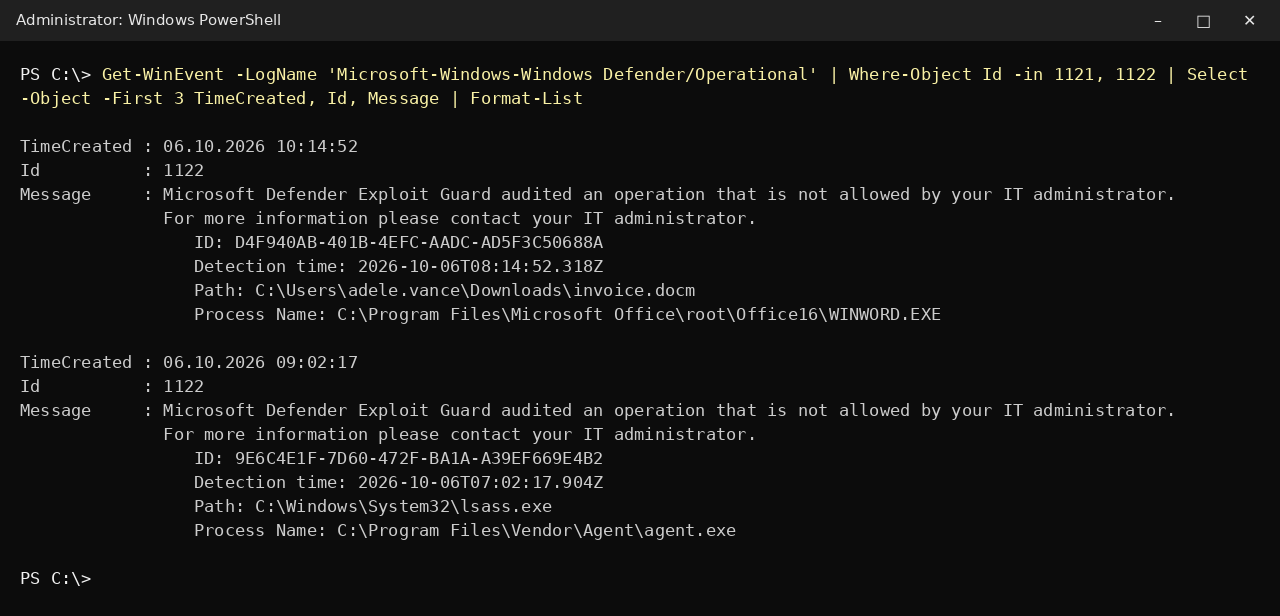
If you have Microsoft Defender for Endpoint, the Attack surface reduction rules report in the Microsoft Defender portal shows the same information for all devices in one place.
For every audited event decide whether it is a legitimate application. If yes, add a per rule exclusion. Then change the rule from Audit to Block and assign the policy to the remaining devices.
Conclusion
In this blog post we learned how to configure Attack Surface Reduction Rules with Microsoft Intune. You now know how to create the policy, which rules you can block right away, and how to use Audit mode to find exceptions before you enforce the rest. More details are available on Microsoft Learn: Enable attack surface reduction rules and the ASR rules reference. Did you enjoy this article? Don’t forget to follow us and share this article. If you have any questions or need further assistance, feel free to reach out or leave a comment below.